
Window layout
Camera Control app is using a top pane for a ribbon toolbar, a right pane for live spectrum view, a left pane for data and bottom panel for a status bar. An app splash screen is displayed at the app start. Dark and light colours are used depending on the system settings.
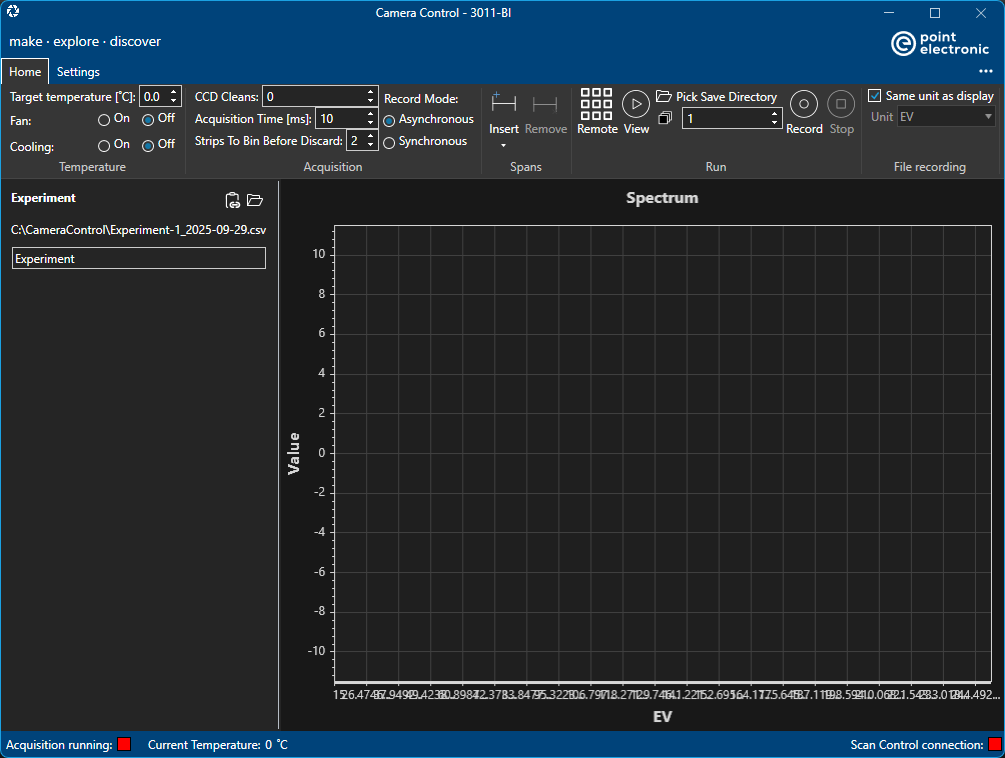
Note that app title includes the name of the connected camera, '3011-BI' in the screenshot above.
Ribbon toolbar is composed of two vertical sections, the top section shows the selected and available toolbars aligned to the left, and the further '...' menu aligned to the right. The bottom section shows the content of selected toolbar, grouped into logical control sections. Further contextual toolbars are show depending on what is selected in the app.
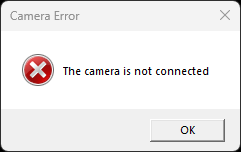
At start up, a splash screen will first be shown and connection to the camera is attempted. If no camera is found, then the app will display a 'The camera is not connected' message, and then it will exit.
Window placement on the screen is automatic by the operating system. It may be resized as needed, the app records it's size at exit and remember previous size at start. If windows size is reduced below the space necessary for the toolbar, then automatic left and right arrows will be show in the ribbon for scrolling.