View metadata in microDIP
MicroDIP software provides a metadata viewing function which enables the users to read metadata without relying on an external program during data analysis.
Default tags and views
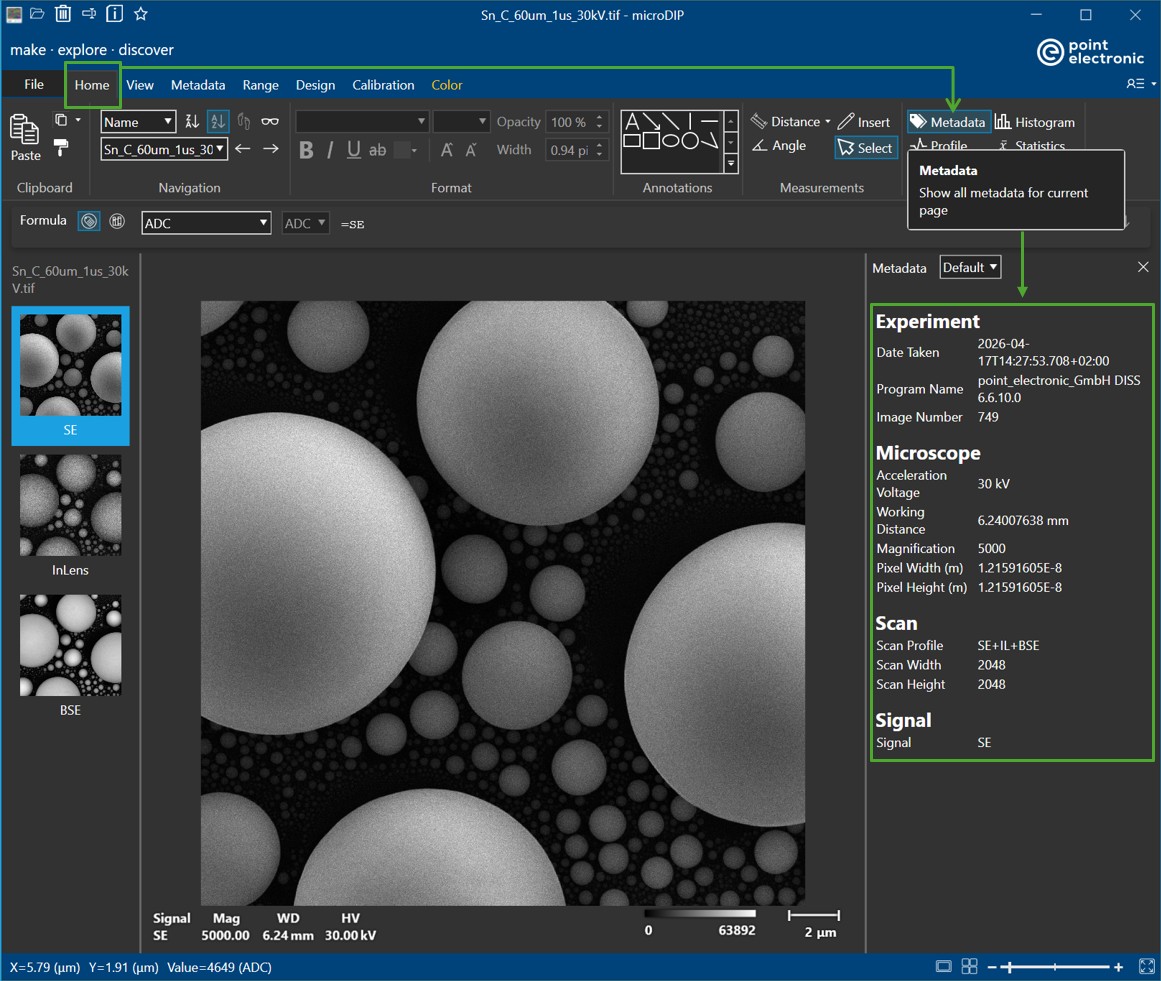
Once an image with metadata is loaded, a short summary of metadata is displayed in a side panel. This metadata side panel can be hidden or shown by pressing the 'Metadata' button in the 'Home' tab.
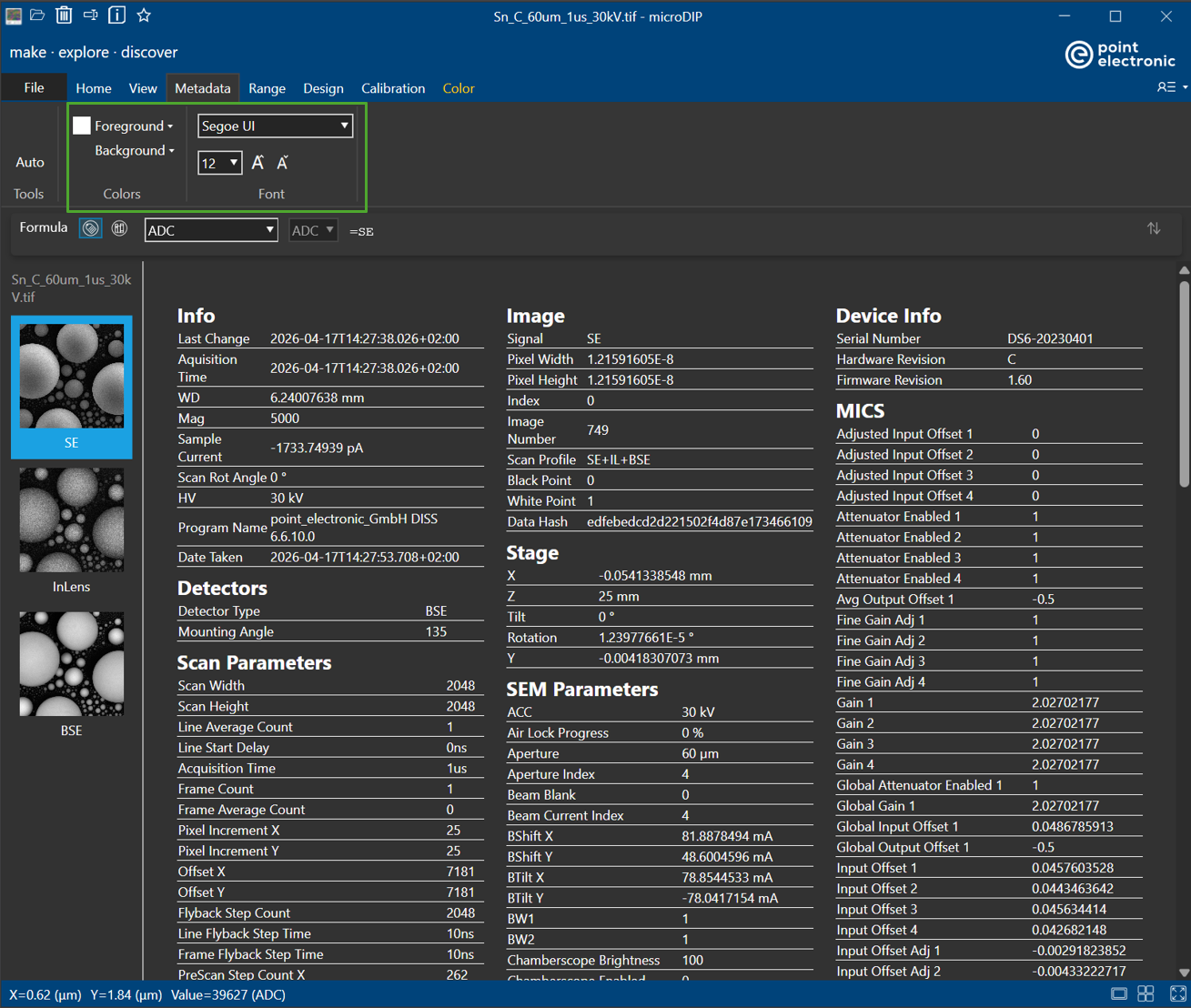
Should the users wish to have a more detailed view of the metadata tags available in the image file, then they should navigate from 'Home' tab to 'Metadata' tab
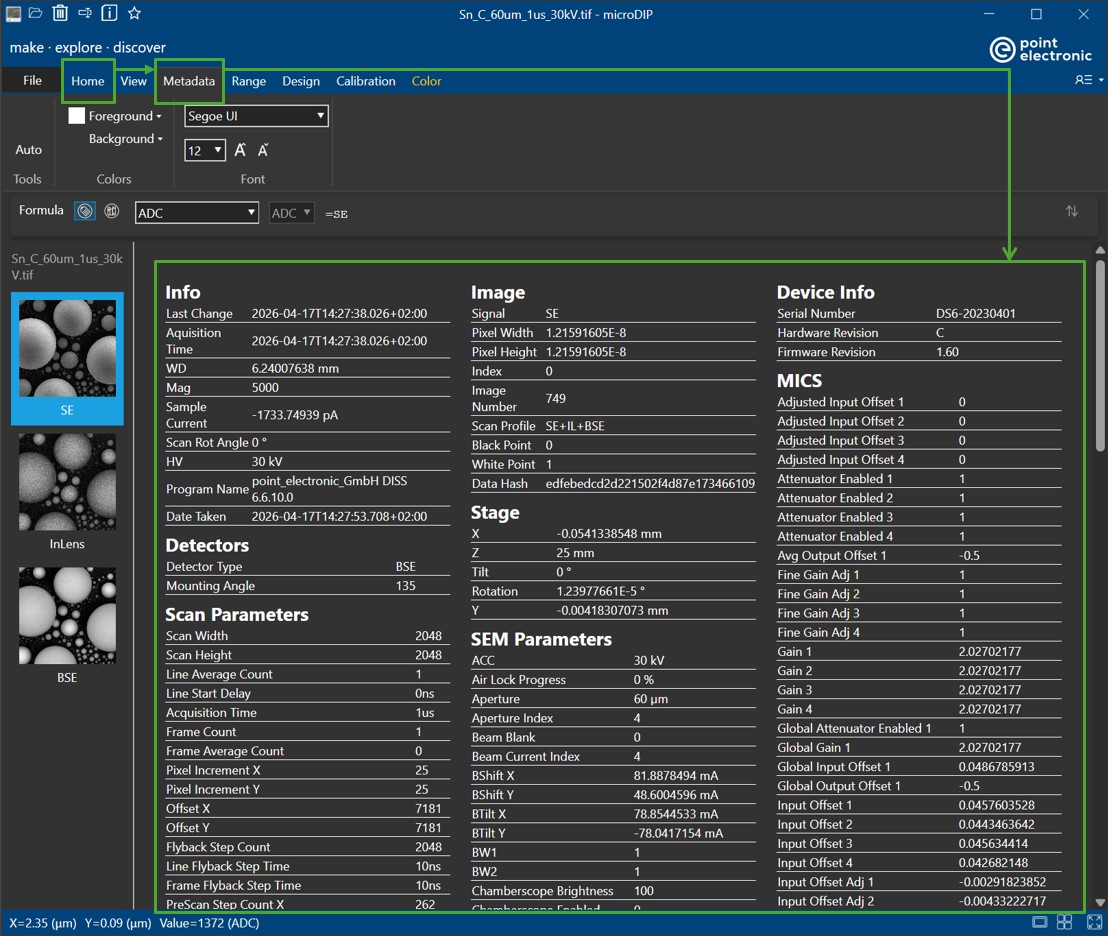
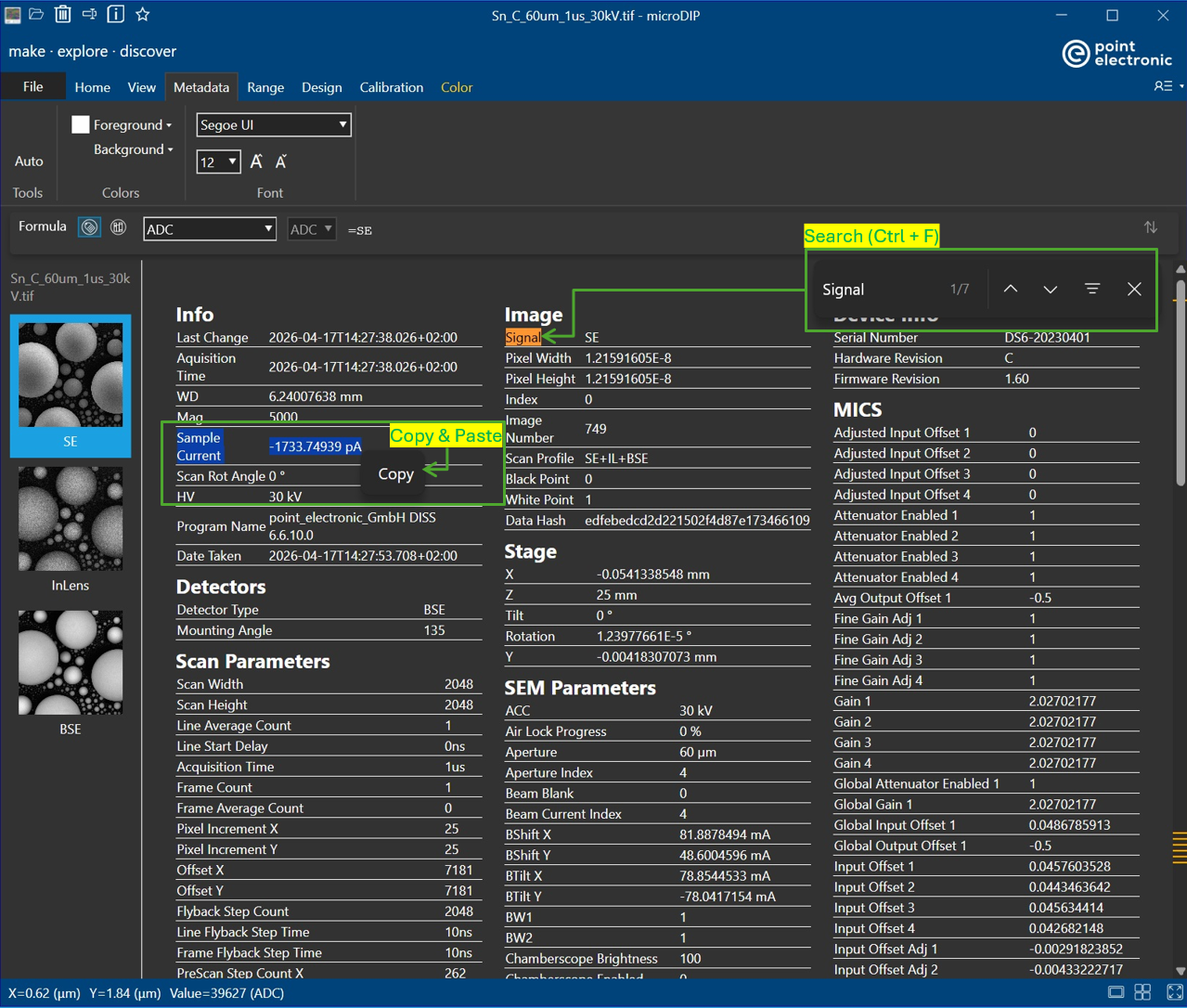
In the full view of metadata, users will have the options to change color, font style and font size the visibility (color, font style and font size) of the displayed metadata to their desire (in 'Color' amd 'Font'). The displayed metadata-of-interest can be searched via keywords by using Ctrl+F (or drag selecting the text and Ctrl+F to search for similar occurrences). The information can be copied and pasted to other programs by simply right-clicking and choosing 'Copy'.
Custom tags and views
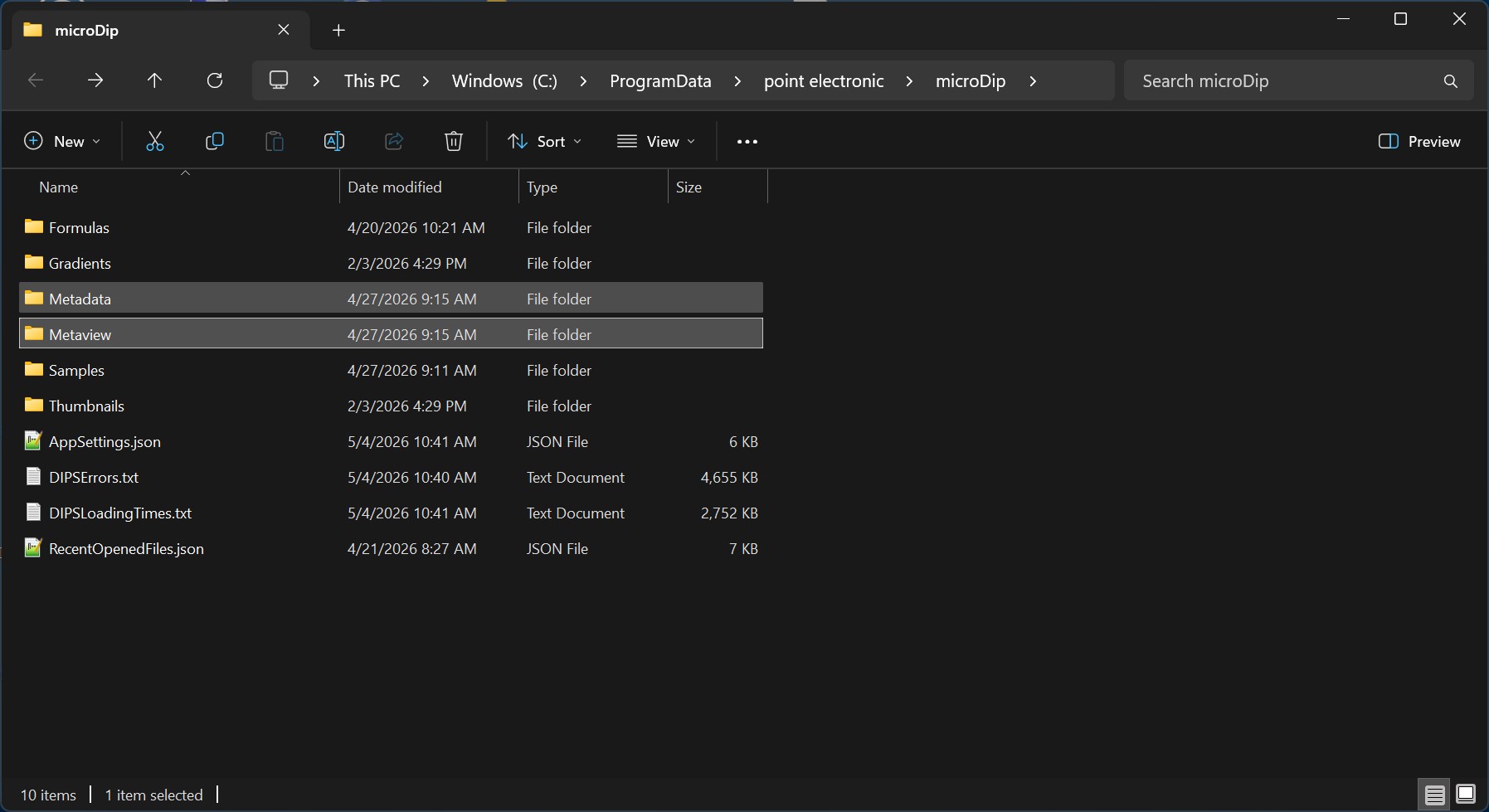
It is possible to customize the key tags displayed in the side panel, or the way in which the tags are formatted, including insertion of custom graphs. microDIP provides a flexible infrastructure to define additional tags in XML files, and to define additional views using HTML files, see
C:\ProgramData\point electronic\microDip
These file may be customized in particular if
XML Metaview
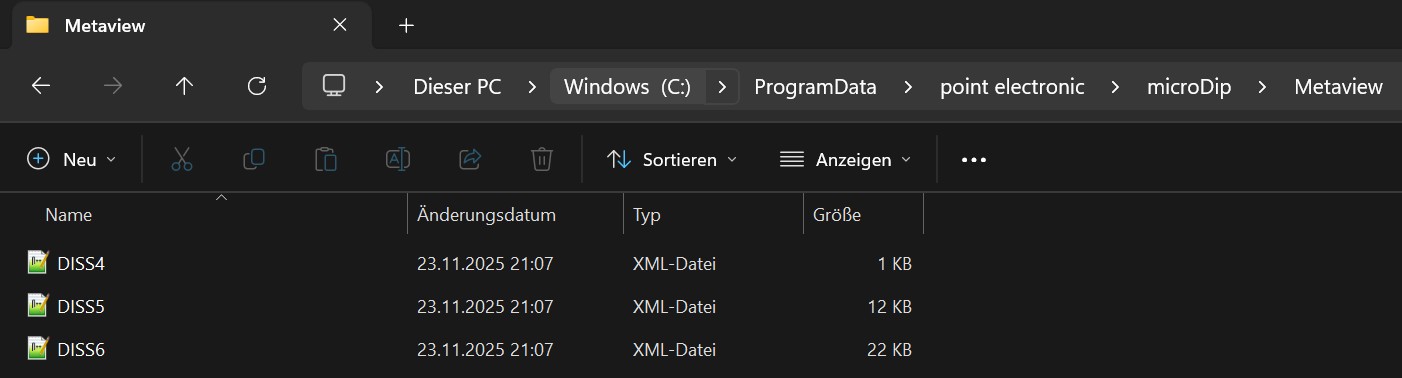
In Metaview, users can find the .XML files for different DISS file format versions. These files may be edited for custom metadata tags. Inside these XML files, users can define their own labels of all the Namespaces which can be used later to present metadata on an HTML format.
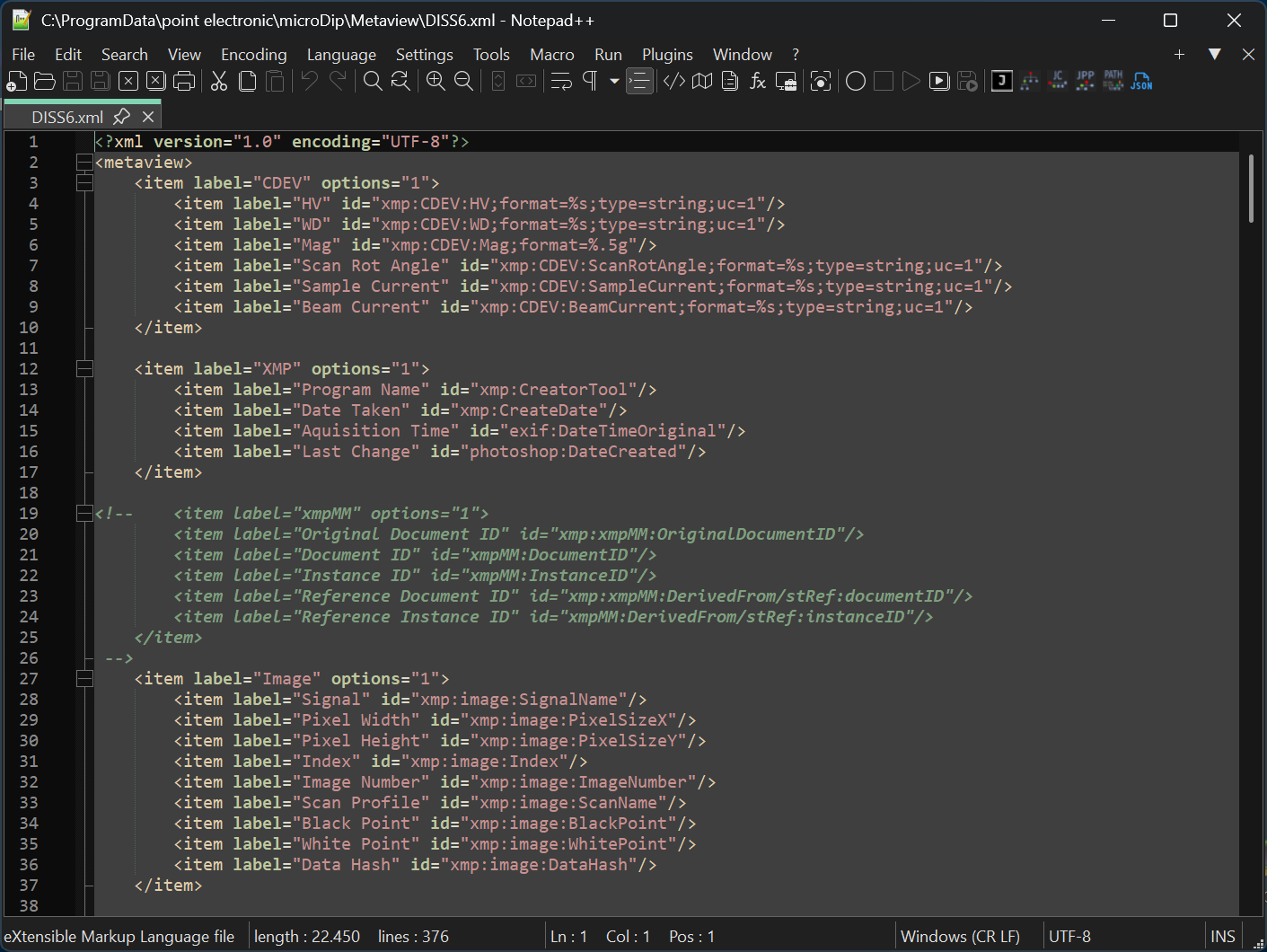
In a simple term, the .XML file will act as a 'bridge' between the .TIF or .JPEG and .HTML files. XMP files will store the parameters as entries under its unique Namespaces (DISS6 XMP | Point Library for example). XML files will create labeling for convenient usage of analysis, data searching and so on. HTML files will handle the display of metadata (table, font, color, etc.) if correct labelings are called.
HTML Metadata
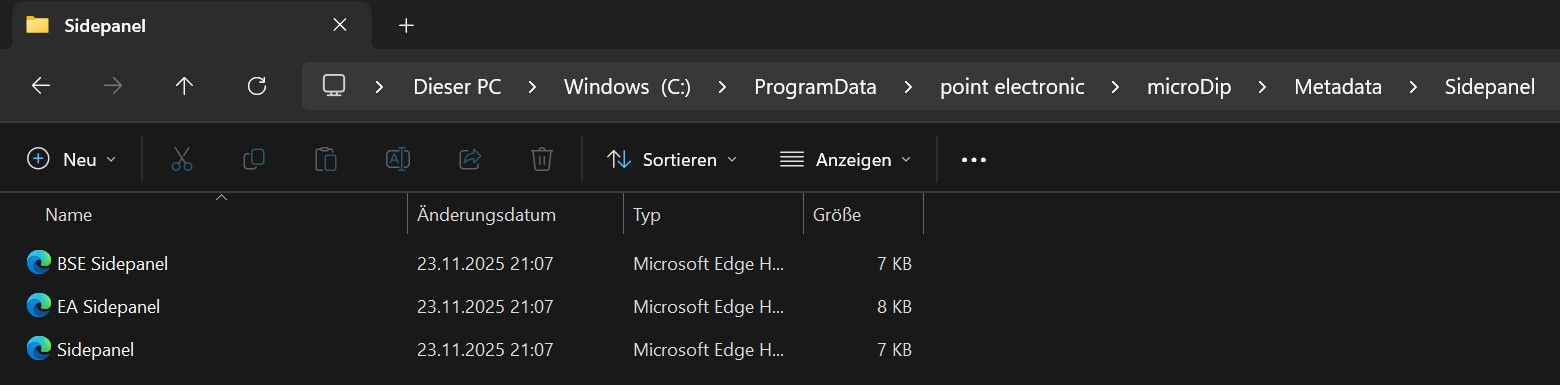
In 'C:\ProgramData\point electronic\microDip\Metadata' folder, HTML files will be stored.
Working with HTML file
Users will find three main fields inside an .HTML file, style, script and HTML fields
1. Style field <style></style>
This field defines the format of displayed information such as font, color, row and column styles
Example
<style>
    :root {
        --text-color: white;
        --border-color: white;
        --background-color: black;
        --font-size: 12px;
        --font-family: Arial, sans-serif;
    }

    table, th, td {
        border: 0px solid white;
        border-collapse: collapse;
    }

    th {
        padding: 12px 0px 0px 0px;
        text-align: left;
        font-family: var(--font-family);
        font-size: large;
    }

    td {
        padding: 1px;
        text-align: left;
        font-family: var(--font-family);
        font-size: var(--font-size);
    }

    body {
        background-color: var(--background-color);
        color: var(--text-color);
    }
</style>
2. Script field <script></script>
This field allows users to write sets of instructions which tell MicroDIP how to logically handle the display of information
Example
<script>
    // Function to run when DOM is fully loaded
    document.addEventListener('DOMContentLoaded', function () {
        // Fix HTML issues - like unclosed table tags
        function fixHtmlIssues() {
            // Fix the channel-info table that's missing a closing tag
            const channelInfoTable = document.getElementById('channel-info');
            if (channelInfoTable && !channelInfoTable.innerHTML.includes('</table>')) {
                channelInfoTable.outerHTML = channelInfoTable.outerHTML.replace(/<table/, '</table><table');
            }

            // Close any unclosed media query in CSS
            const styleTag = document.querySelector('style');
            if (styleTag && !styleTag.innerHTML.includes('}')) {
                styleTag.innerHTML += '}';
            }
        }

        // Check if text is only a placeholder
        function isPlaceholder(text) {
            // Remove whitespace and check if the text only contains placeholder patterns
            text = text.trim();
            // Empty text or text that only contains placeholder patterns ({{ and }})
            return text === '' || (text.includes('{{') && text.includes('}}') && !text.replace(/\{\{[^}]*\}\}/g, '').trim());
        }

        // Process all rows to remove placeholder rows
        function cleanupPlaceholderRows() {
            const tables = document.getElementsByTagName('table');

            for (let i = 0; i < tables.length; i++) {
                const table = tables[i];
                const rows = table.getElementsByTagName('tr');
                let hasValidRows = false;

                // Process all rows in the table
                for (let j = rows.length - 1; j >= 0; j--) {
                    const row = rows[j];
                    const valueCell = row.querySelector('td:nth-child(2)'); // Second column cell

                    // If the cell exists and contains only placeholders, remove the row
                    if (valueCell && isPlaceholder(valueCell.innerHTML)) {
                        row.parentNode.removeChild(row);
                    } else if (valueCell) {
                        // This row has valid content
                        hasValidRows = true;
                    }
                }

                // If no valid rows remain, hide the entire table
                if (!hasValidRows || table.getElementsByTagName('tr').length === 0) {
                    // Hide the table and its caption
                    table.style.display = 'none';
                    const caption = table.querySelector('caption');
                    if (caption) {
                        caption.style.display = 'none';
                    }
                }
            }

            // Now check if any column is empty (all tables are hidden)
            const columns = document.getElementsByClassName('column');
            for (let i = 0; i < columns.length; i++) {
                const column = columns[i];
                const tables = column.getElementsByTagName('table');
                let hasVisibleTable = false;

                // Check if the column has any visible tables
                for (let j = 0; j < tables.length; j++) {
                    if (tables[j].style.display !== 'none') {
                        hasVisibleTable = true;
                        break;
                    }
                }

                // If all tables in this column are hidden, hide the column
                if (!hasVisibleTable) {
                    column.style.display = 'none';
                }
            }
        }

        // Fix HTML issues first
        fixHtmlIssues();

        // Then clean up placeholder content
        cleanupPlaceholderRows();

        // Run one more time after a short delay to ensure all processing is complete
        setTimeout(cleanupPlaceholderRows, 100);
    });

    //CSS functions
    function updateCSSVariables(styles) {
        if (styles.textColor) {
            document.documentElement.style.setProperty('--text-color', styles.textColor);
        }
        if (styles.borderColor) {
            document.documentElement.style.setProperty('--border-color', styles.borderColor);
        }
        if (styles.backgroundColor) {
            document.documentElement.style.setProperty('--background-color', styles.backgroundColor);
        }
        if (styles.fontSize) {
            document.documentElement.style.setProperty('--font-size', styles.fontSize);
        }
        if (styles.fontFamily) {
            document.documentElement.style.setProperty('--font-family', styles.fontFamily);
        }
    }
</script>
3. HTML field<html></html>
This field defines the content of displayed information. Metadata parameters with labels will be listed here in order to be visible.
Example
<!DOCTYPE html>
<html>
<head>
    <title>Metadata</title>
</head>

<body>
    <table id="t01">
        <tr><th colspan="2">Experiment</th></tr>
        <tr><td>Comment</td><td>{{Comment_VALUE}}</td></tr>
        <tr><td>Date Taken</td><td>{{Date Taken_VALUE}}</td></tr>
        <tr><td>Program Name</td><td>{{Program Name_VALUE}}</td></tr>
        <tr><td>Image Number</td><td>{{Image Number_VALUE}}</td></tr>

        <tr><th colspan="2">Microscope</th></tr>
        <tr><td>Acceleration Voltage</td><td>{{HV_VALUE}} {{HV_UNIT}}</td></tr>
        <tr><td>Working Distance</td><td>{{WD_VALUE}} {{WD_UNIT}}</td></tr>
        <tr><td>Magnification</td><td>{{Mag_VALUE}}</td></tr>
        <tr><td>Pixel Width (m)</td><td>{{Pixel Width_VALUE}}</td></tr>
        <tr><td>Pixel Height (m)</td><td>{{Pixel Height_VALUE}}</td></tr>

        <tr><th colspan="2">Scan</th></tr>
        <tr><td>Scan Profile</td><td>{{Scan Profile_VALUE}}</td></tr>
        <tr><td>Scan Width</td><td>{{Scan Width_VALUE}}</td></tr>
        <tr><td>Scan Height</td><td>{{Scan Height_VALUE}}</td></tr>
        <tr><td>Frame Average</td><td>{{Frame Average_VALUE}}</td></tr>
        <tr><td>Line Average</td><td>{{Line Average_VALUE}}</td></tr>

        <tr><th colspan="2">Signal</th></tr>
        <tr><td>Signal</td><td>{{Signal_VALUE}}</td></tr>
        <tr><td>Data Type</td><td>{{Data Type_VALUE}}</td></tr>
        <tr><td>Pixel Average</td><td>{{Pixel Average_VALUE}}</td></tr>
    </table>
</body>
</html>
Main Panel
C:\ProgramData\point electronic\microDip\Metadata\'Mainpanel.html'
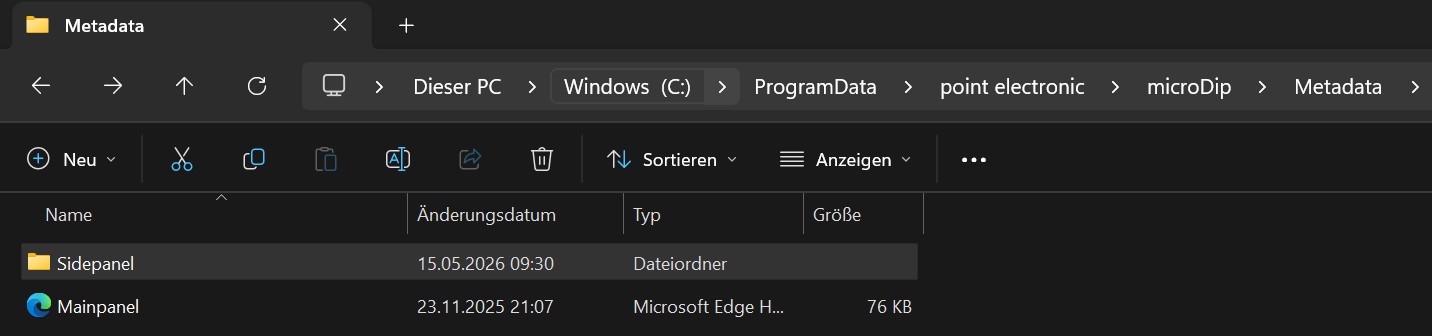
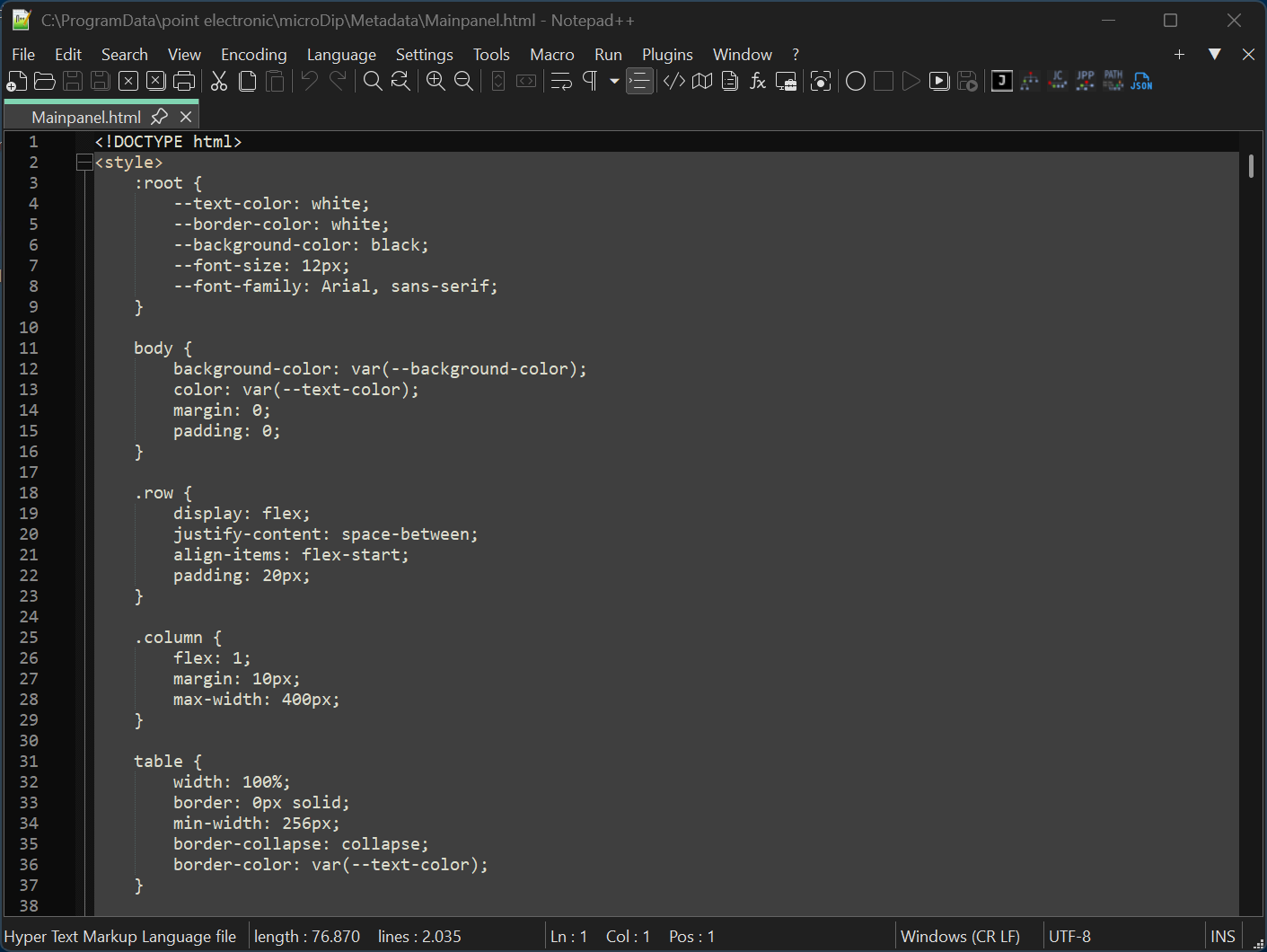
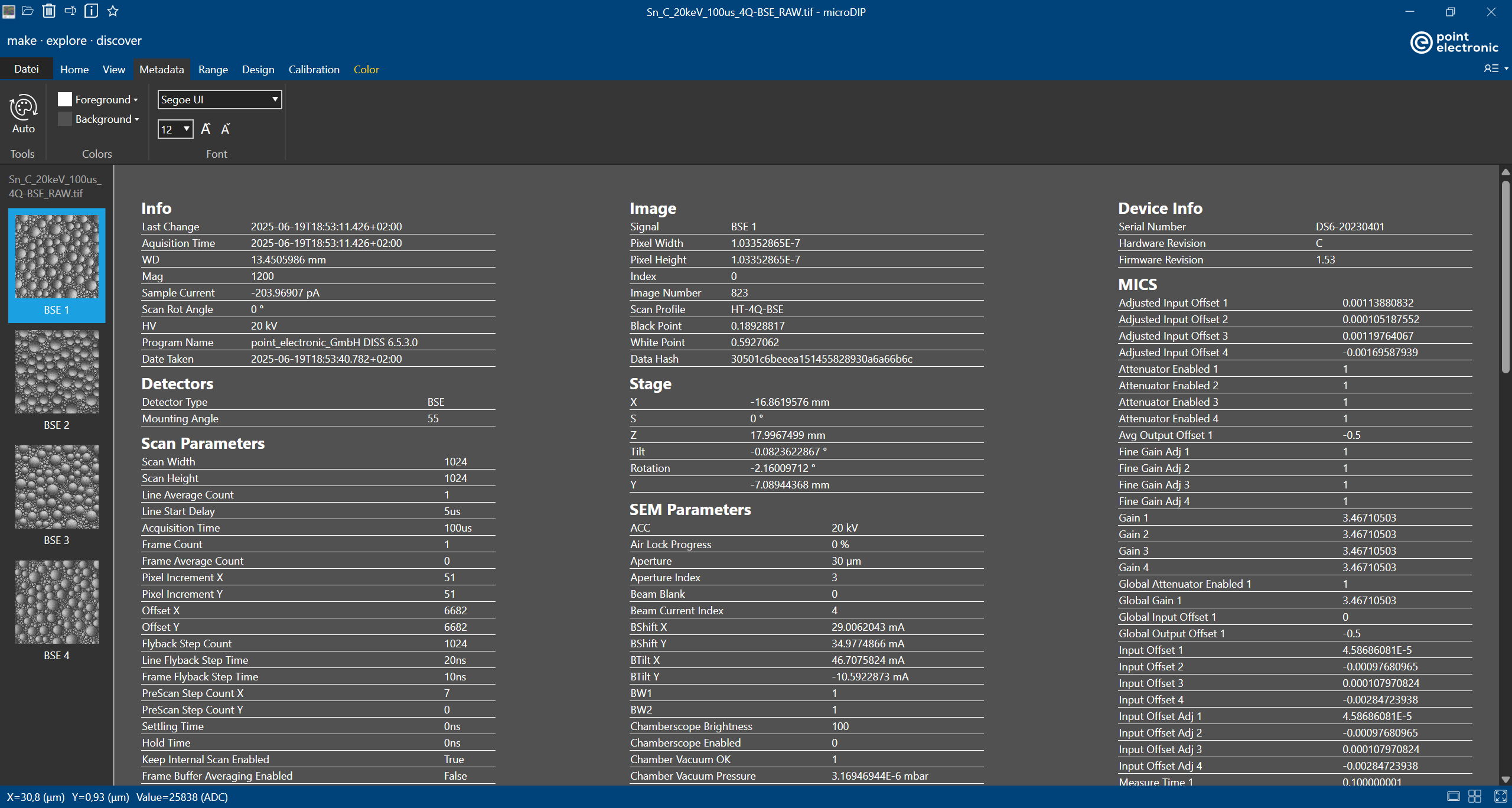
This HTML file will handle the metadata presentation in 'Home tab > Metadata tab' in MicroDIP. Users can define how the metadata should be displayed. An example of metadata with all the parameters being sorted in three different columns is shown below
Side Panel
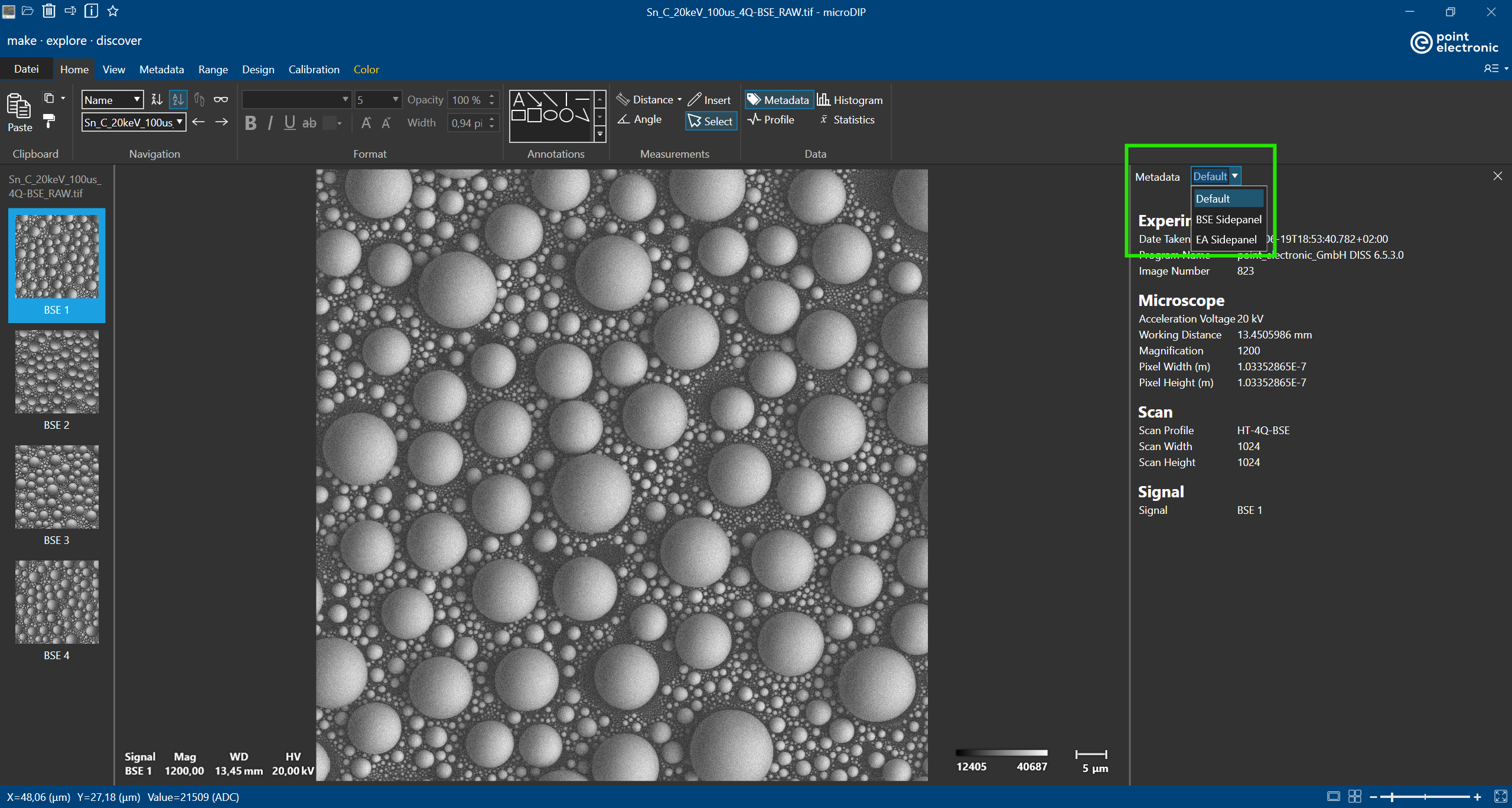
A list of selective metadata can be displayed with the 'Metadata' button in 'Home' tab in MicroDIP. Users can have multiple side panels with customized names which are the names of the corresponding HTML files in 'Sidepanel' folder.