
Configuration
Two general methods may be used to set up the device for TCP communication.
Manual IP
Manual IP is the most common configuration, however the lab manager must keep track of devices and their fixed IP addresses.
Please request the reserved device IP address from the lab manager.
Make sure that:
- 'TCP Enabled' is checked (default for REVOLON)
- 'DHCP Enabled' is not checked (default for REVOLON)
- 'Protocol Ports' are set to 7701 … 7705 (default for REVOLON)
- 'Mask' is set to local network requirements
- 'Address' is set to local network requirements
Automatic IP
Automatic IP is less common as it requires a local network with a DHCP server, which may be provided by a router.
Note that the DHCP server may allocate different IP addresses to the scan controller, which may require updates to clients settings! If possible, set the DHCP server to reserve an IP address for this device.
If not already installed, please connect the 5 m ETH cable provided with the hardware from the scan controller to the local network of the microscope or lab, then start the app and check the 'DHCP Enabled' box.
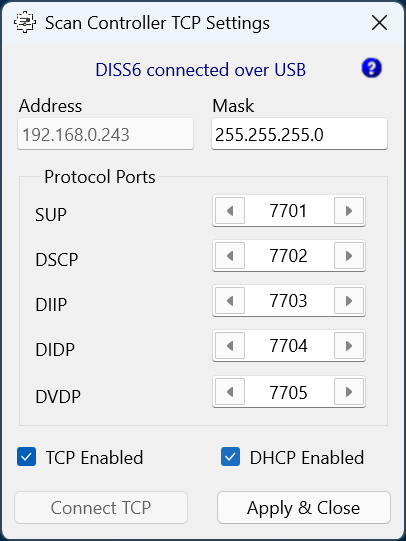
Note that the 'Address' text input is disabled when DHCP is enabled. For reliable reading of the actual IP address of the device, it is always recommended to read the IP address from the display panel on the front of the hardware scan controller.