View metadata in microDIP image processor
MicroDIP provides a metadata viewing function which enables the users to read metadata without relying on an external program during data analysis.
Default tags and views
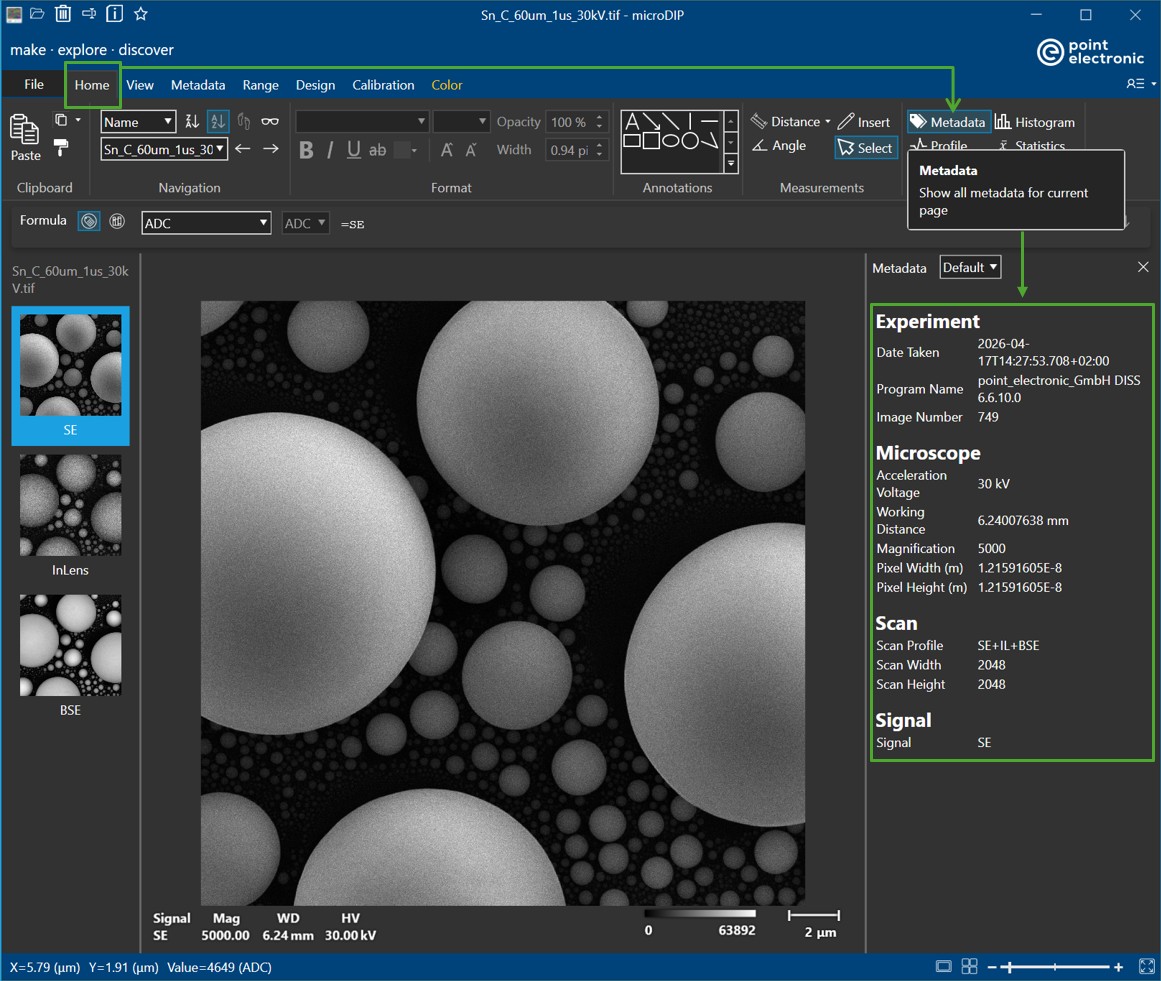
Once an image with metadata is loaded, a short summary of metadata is displayed in a side panel. This metadata side panel can be hidden or shown by pressing the 'Metadata' button in the 'Home' tab.
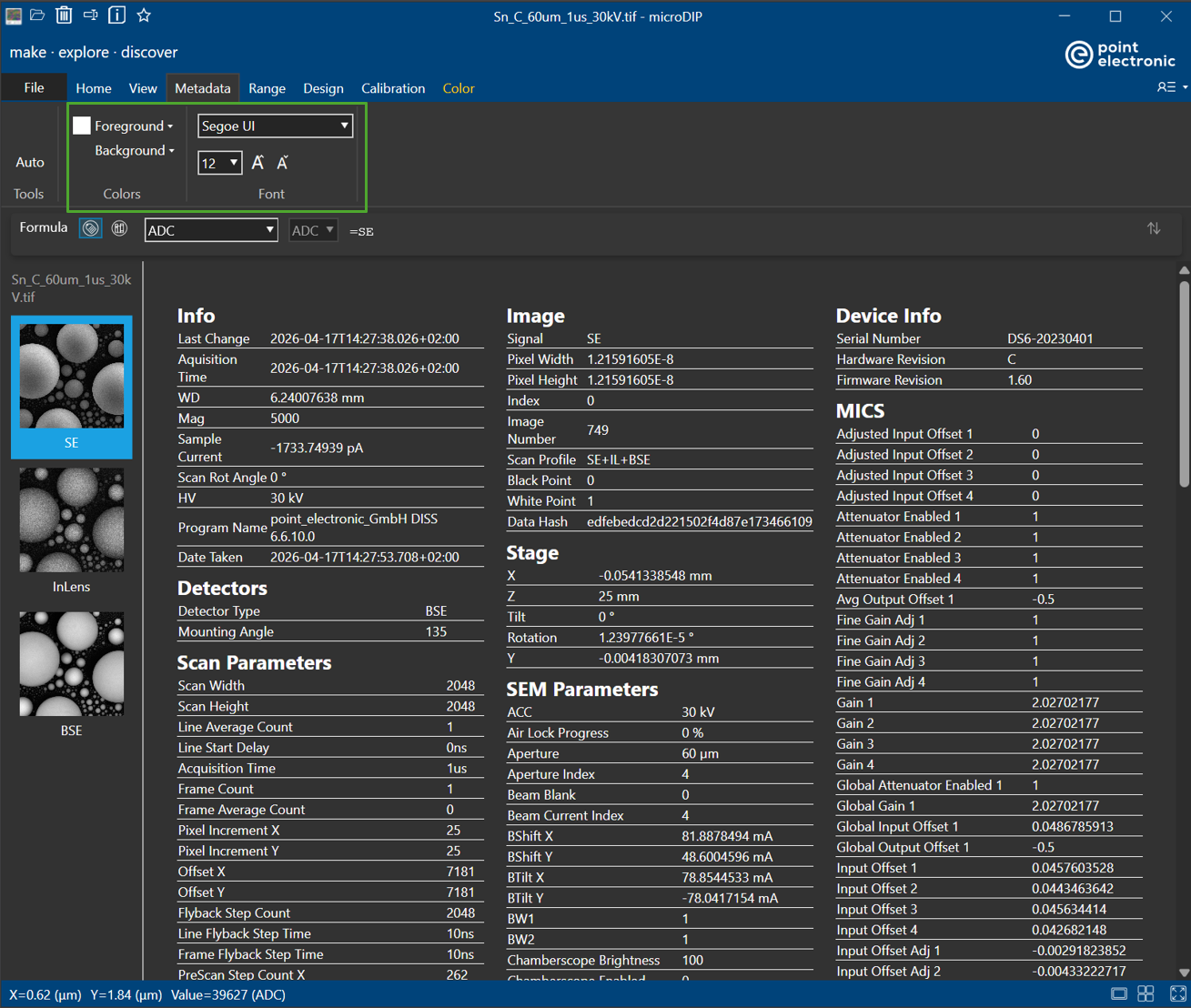
Should the users wish to have a more detailed view of the metadata tags available in the image file, then they should navigate from 'Home' tab to 'Metadata' tab
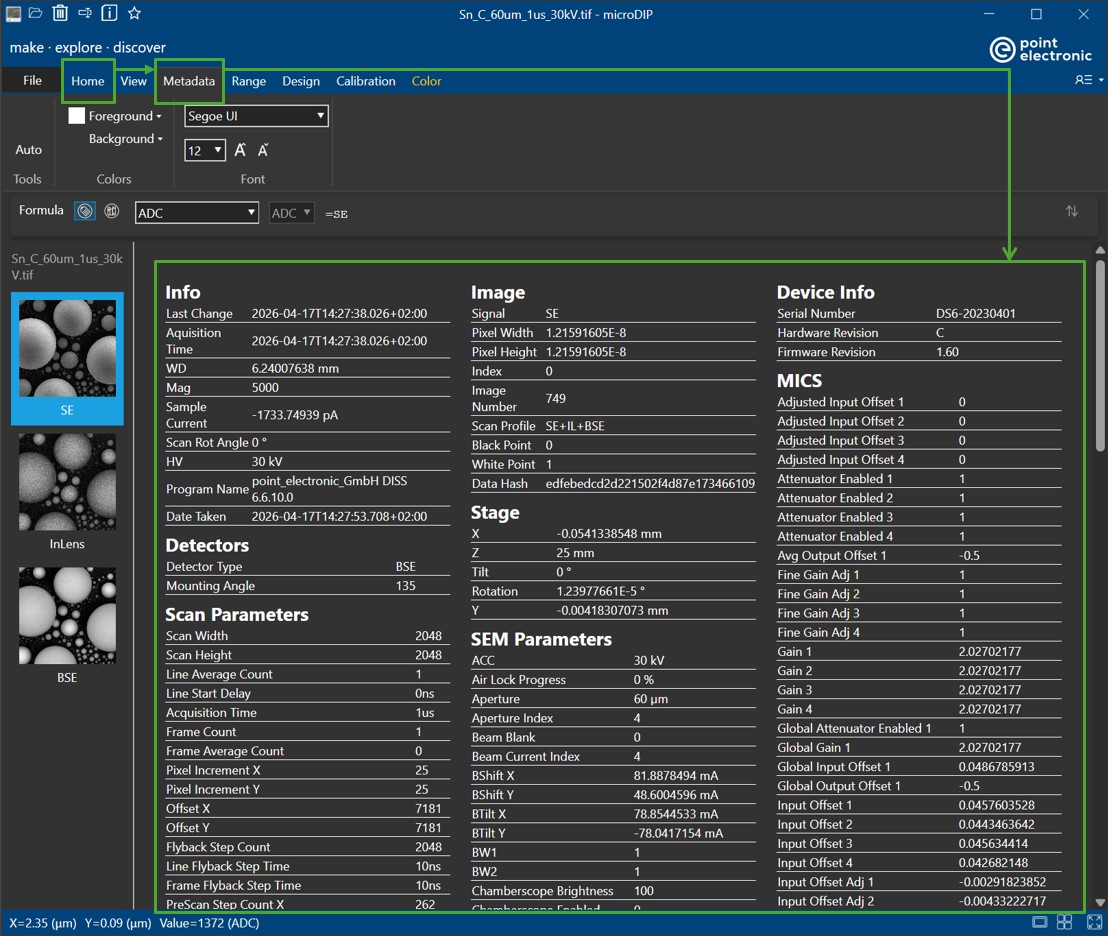
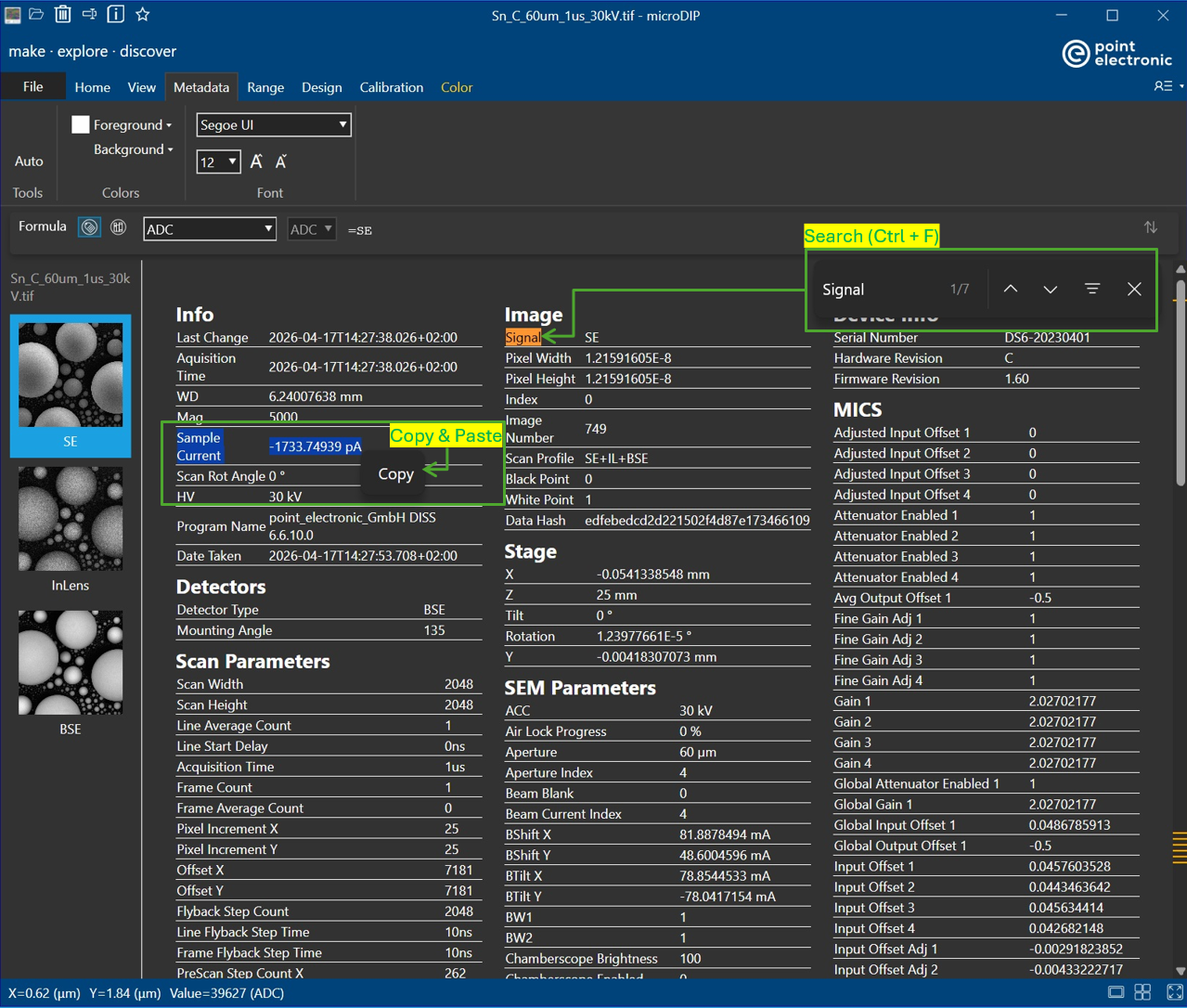
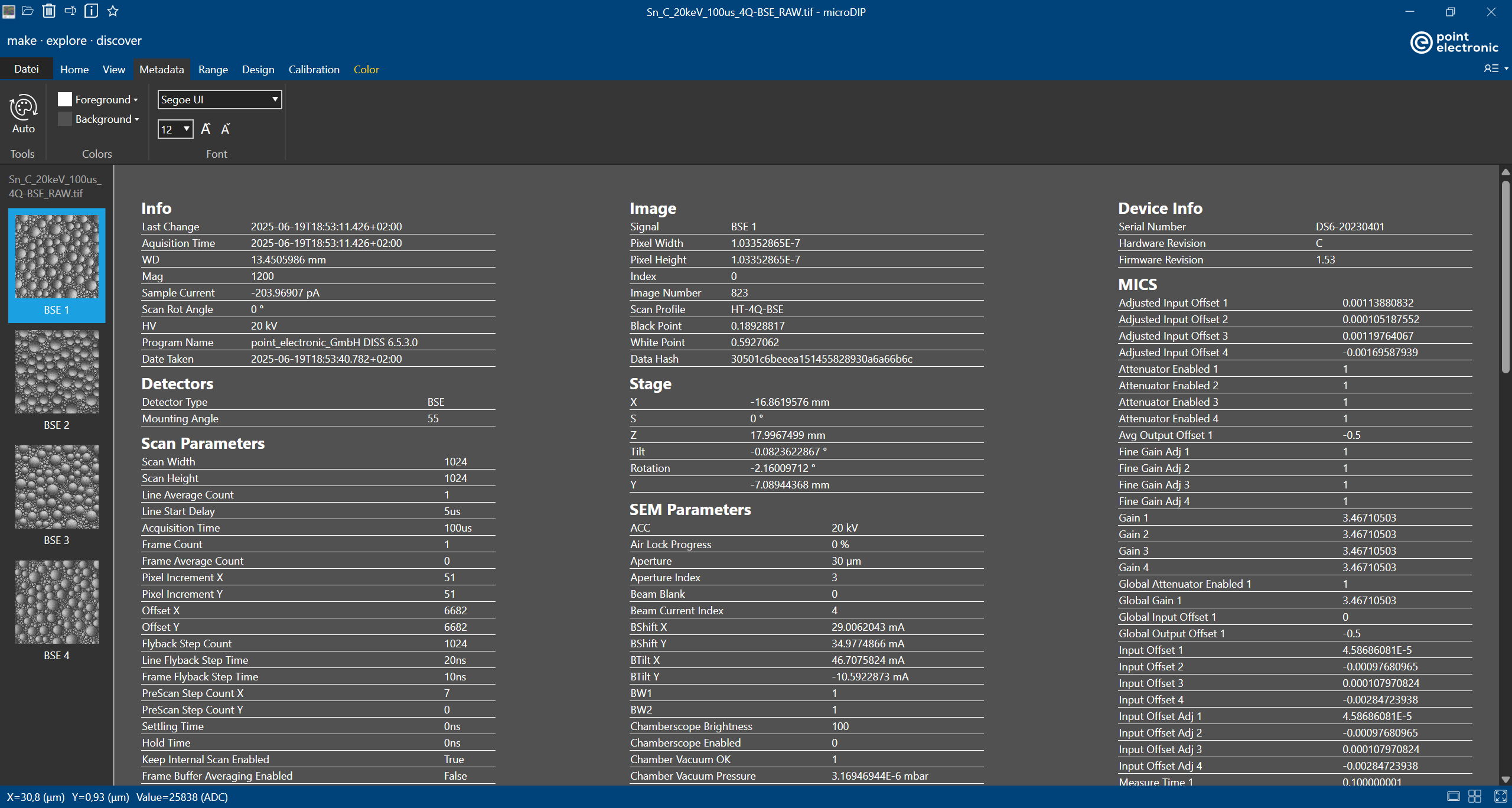
In the full view of metadata, users will have the options to change color, font style and font size the visibility (color, font style and font size) of the displayed metadata to their desire (in 'Color' amd 'Font'). The displayed metadata-of-interest can be searched via keywords by using Ctrl+F (or drag selecting the text and Ctrl+F to search for similar occurrences). The information can be copied and pasted to other programs by simply right-clicking and choosing 'Copy'.
Custom tags and views
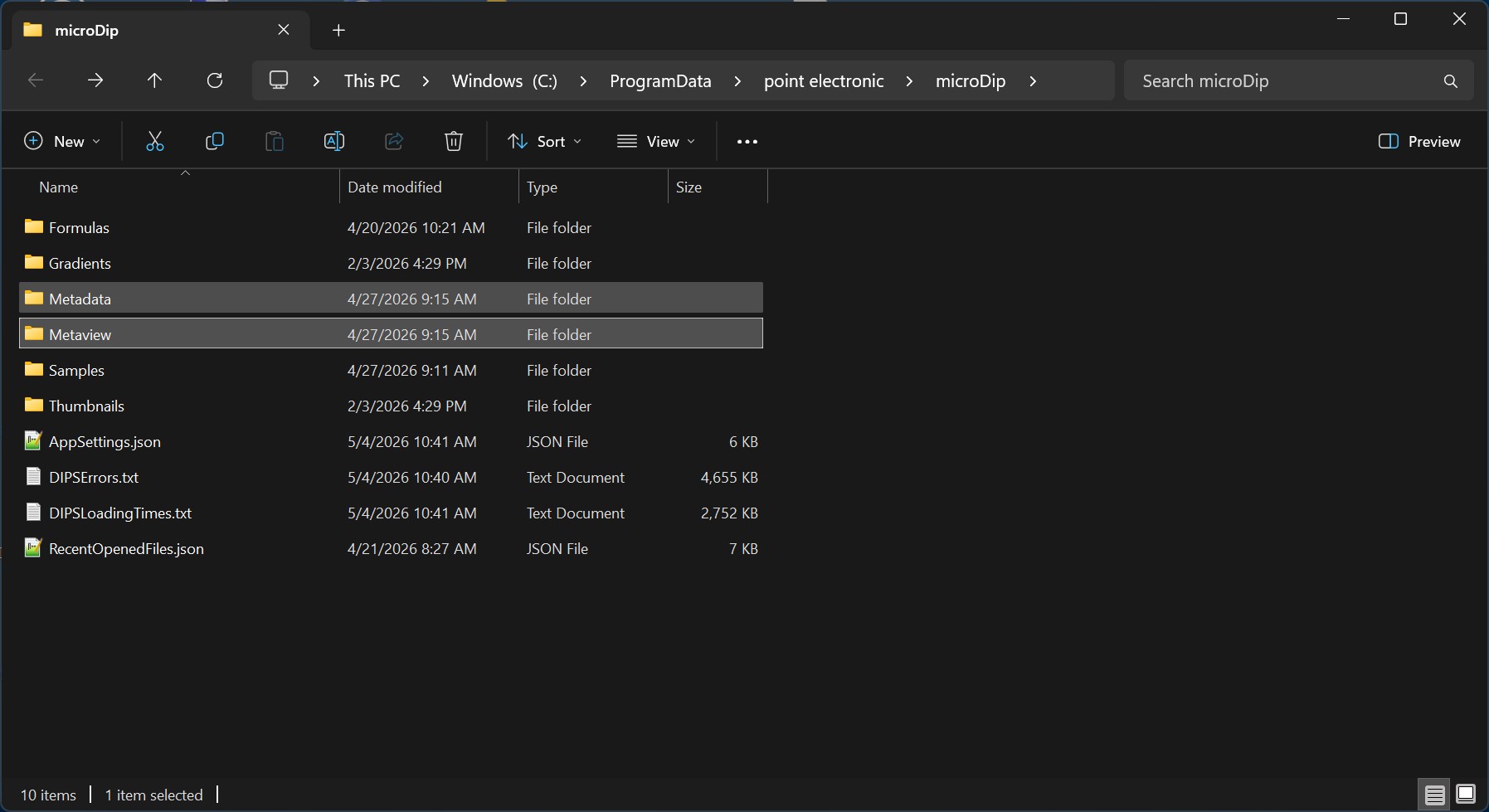
It is possible to customize the key tags displayed in the side panel, or the way in which the tags are formatted, including insertion of custom graphs. microDIP provides a flexible infrastructure to define additional tags in XML files, and to define additional views using HTML files, see
C:\ProgramData\point electronic\microDip
These file may be customized in particular if
XML Metaview
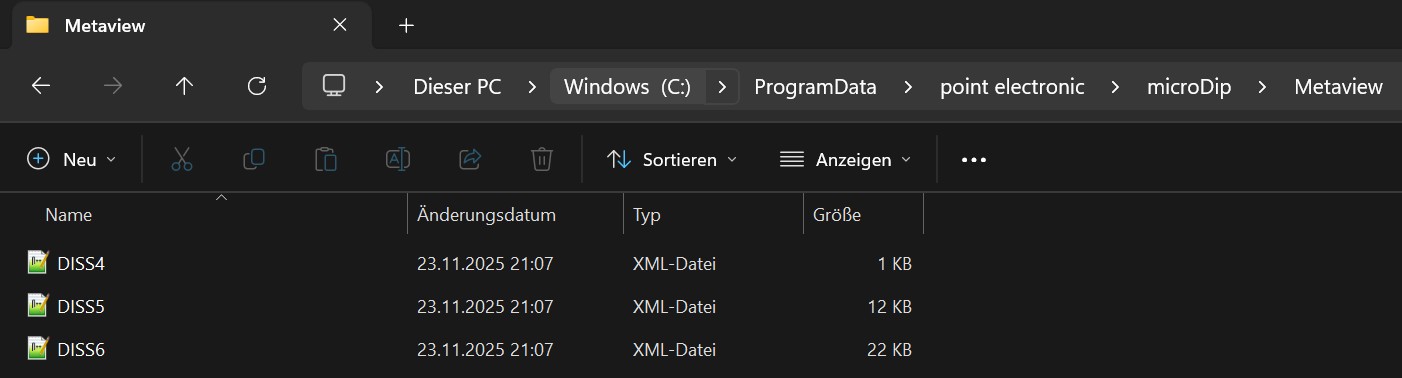
In Metaview, users can find the .XML files for different DISS file format versions. These files may be edited for custom metadata tags. Inside these XML files, users can define their own labels of all the Namespaces which can be used later to present metadata on an HTML format.
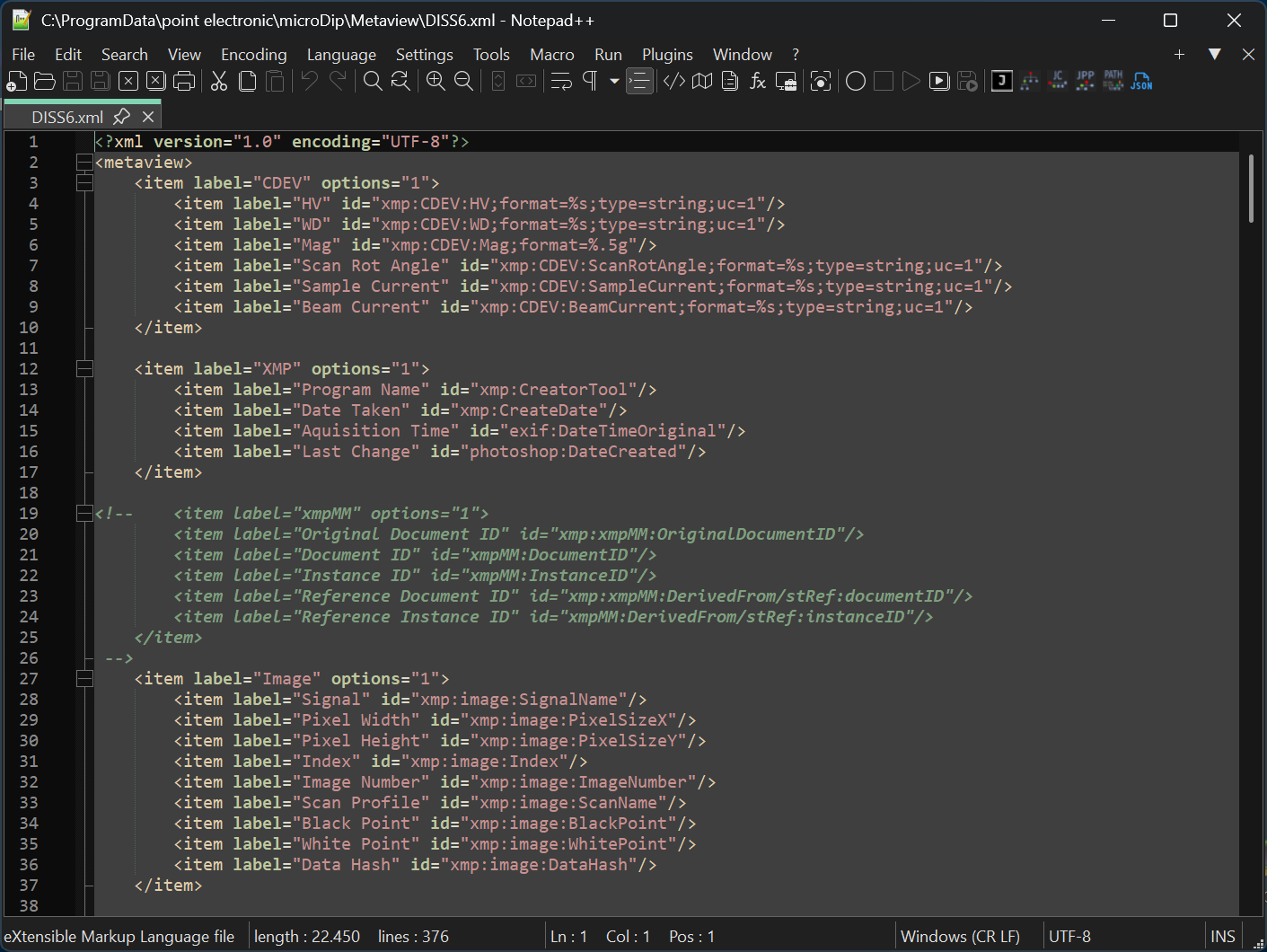
In a simple term, the .XML file will act as a 'bridge' between the .TIF or .JPEG and .HTML files. XMP files will store the parameters as entries under its unique Namespaces (DISS6 XMP | Point Library for example). XML files will create labeling for convenient usage of analysis, data searching and so on. HTML files will handle the display of metadata (table, font, color, etc.) if correct labelings are called.
Metadata
In this folder, HTML files will be stored.
Main Panel
C:\ProgramData\point electronic\microDip\Metadata\'Mainpanel.html'
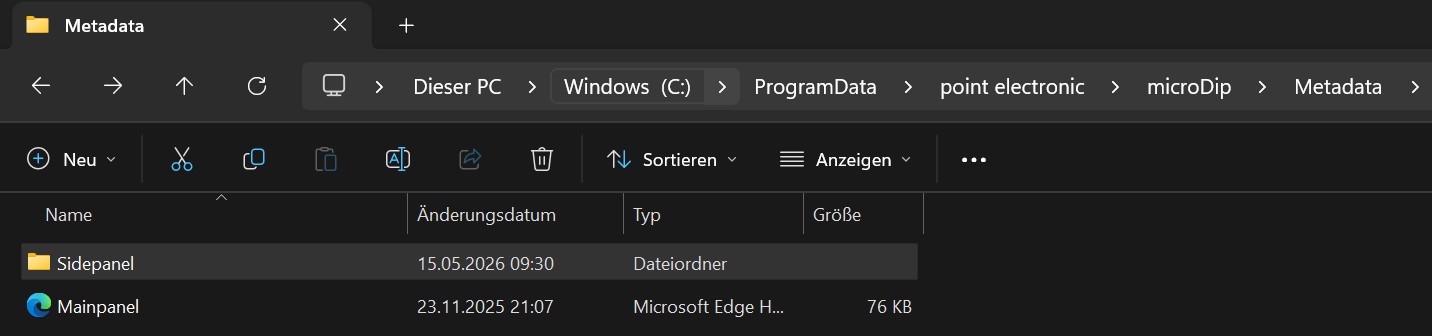
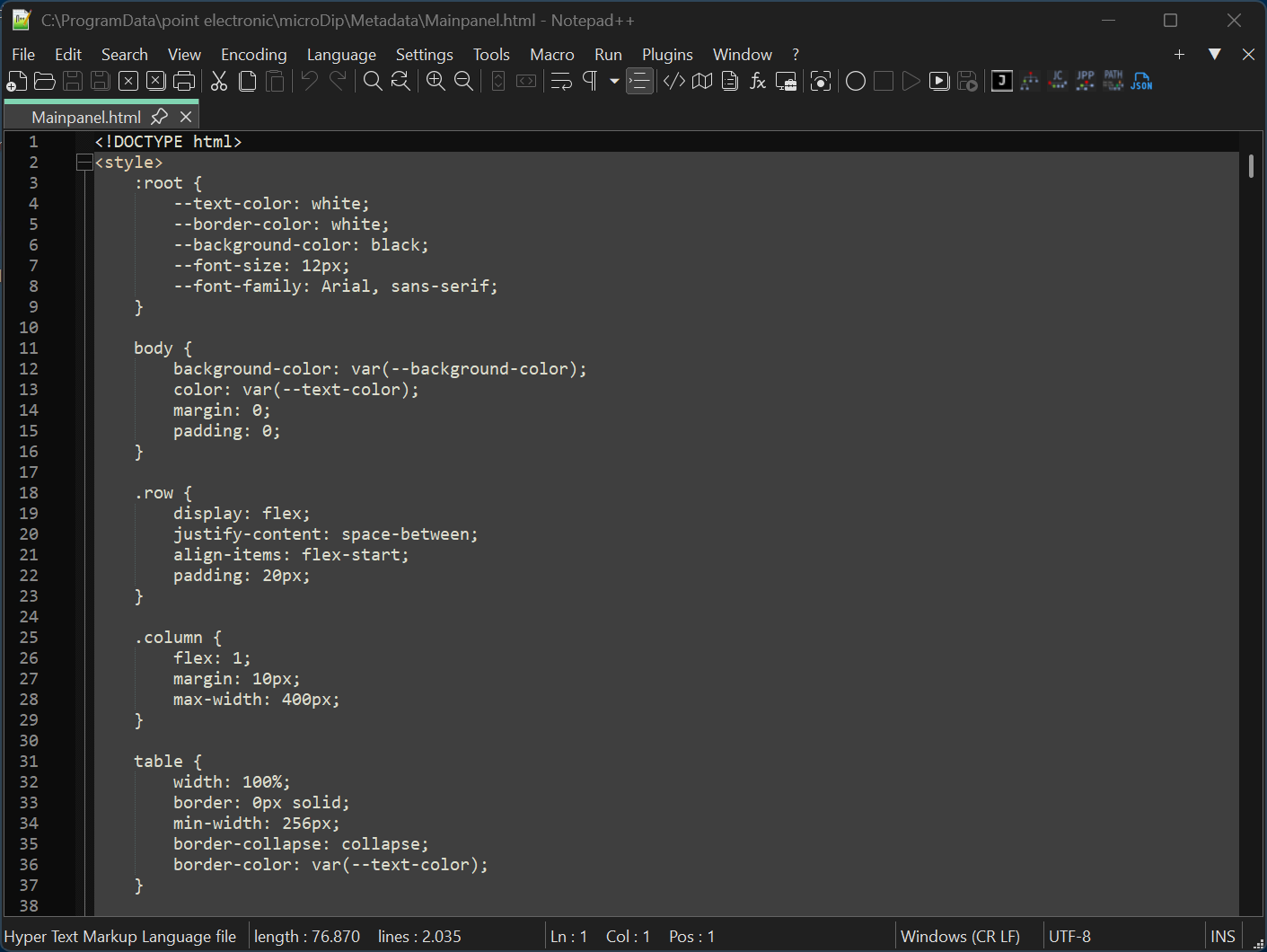
This HTML file will handle the metadata presentation in 'Home tab > Metadata tab' in MicroDIP. Users can define how the metadata should be displayed. An example of metadata with all the parameters being sorted in three different columns is shown below
Side Panel
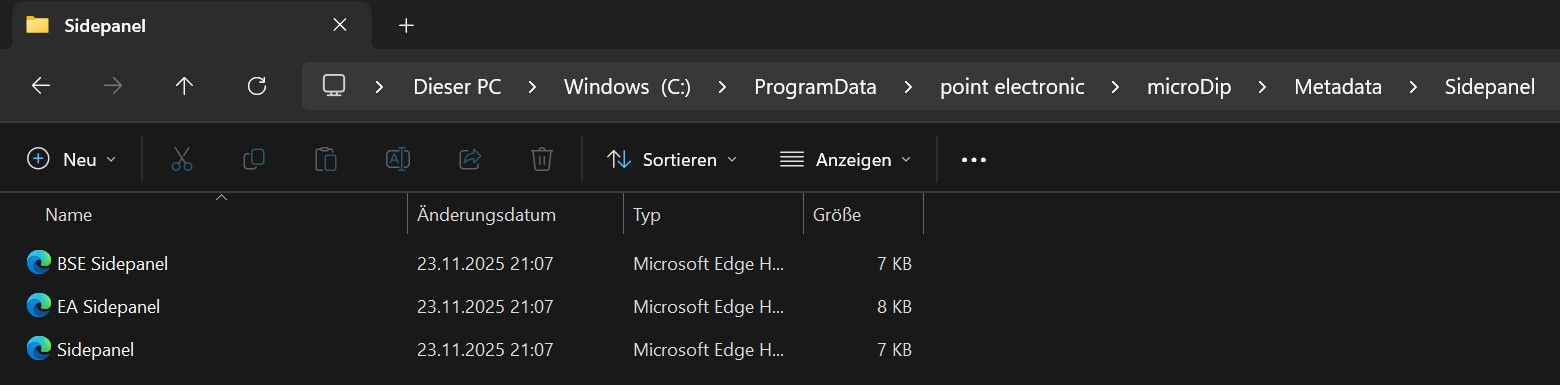
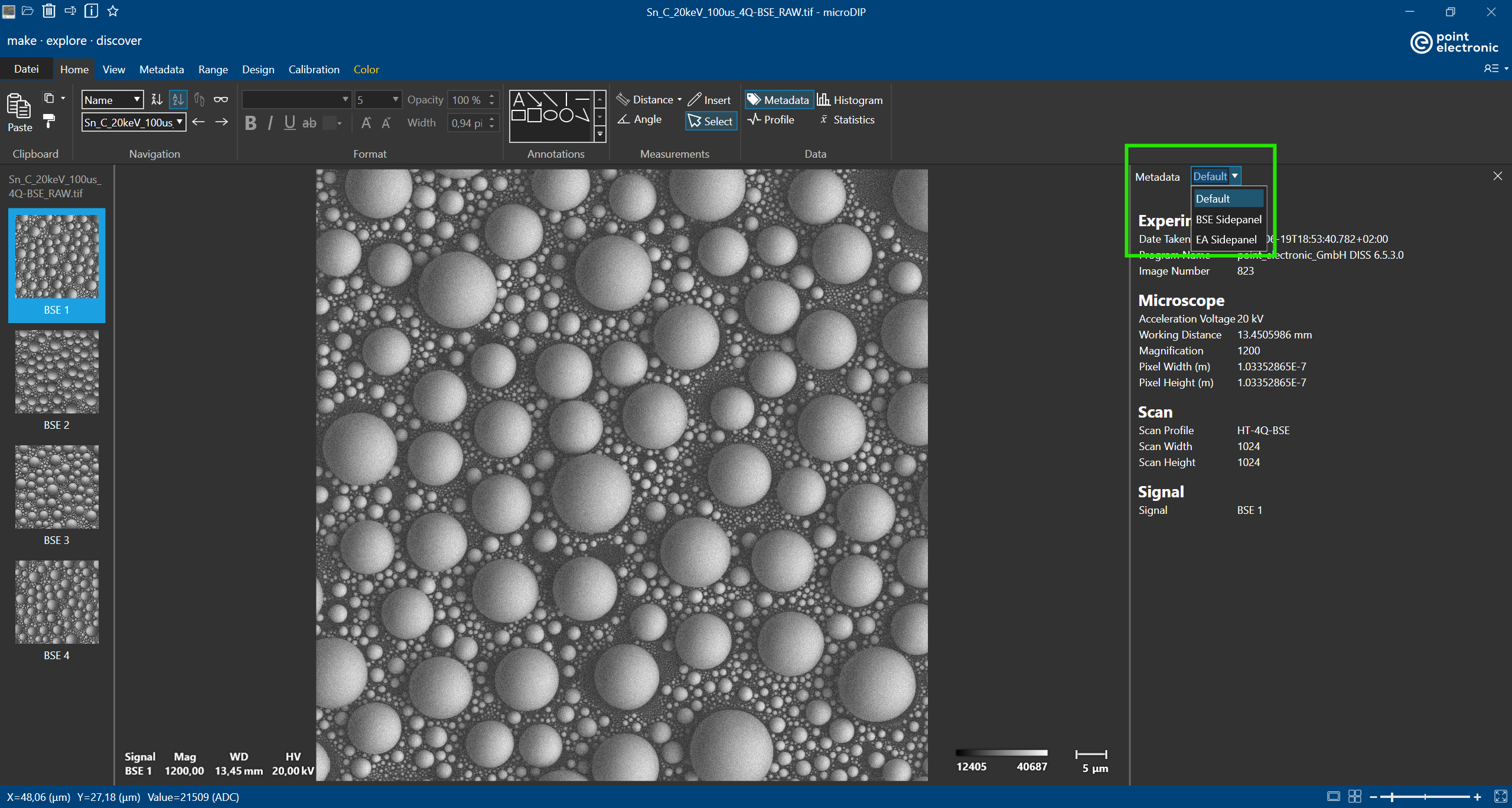
A list of selective metadata can be displayed with the 'Metadata' button in 'Home' tab in MicroDIP. Users can have multiple side panels with customized names which are the names of the corresponding HTML files in 'Sidepanel' folder.