
Description & Operation
This section gives an introduction to the scope, the graphical interface, it explains common operation and user interaction. It does not describe how to change settings for different microscope models, which is described in the private service section - please email service@pointelectronic.de EMGateway must be moved or connected to a different microscope.
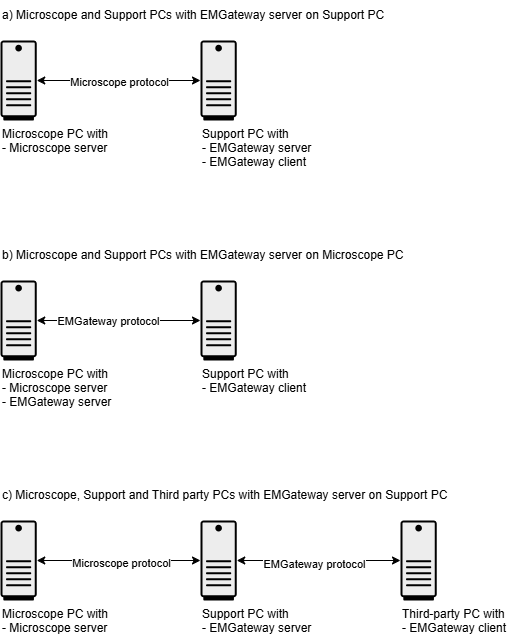
EMGateway server is typically installed on the Support or a third party PC running Microsoft Windows. It's very occasionally installed on the Microscope PC, especially if the manufacturer communication protocol cannot be used on Windows 11...7.
EMGateway will not run without a user license!
Note that a software license is required on the end user PC. The user license is encoded and contained information about the customer to which it has been granted. If part of a larger system/solution, then it has been delivered with on a USB drive and installed automatically with other software. If the user license file has been lost, please write to service@pointelectronic.de
Scope
Most TEMs and SEMs provide an interface for remote communication to third parties. As a minimum requirement, this is required to get key metadata from the microscope, such as magnification or acceleration voltage. Whilst some metadata is specific to TEMs (for example projection mode,) or to SEMs (for example working distance), the need for metadata is universal. However, each microscope provides such metadata over a manufacturer specific interface, which complicates development of software for all TEMs or SEMs. Same applies also to the need to set microscope parameters for remote control. EMGateway server solves this 'many interfaces' problem by translating manufacturer specific interfaces into a common interface.

A second problem is presented by protocols that require a particular operating system. These protocols are likely not using TCP/IP, not available on the network, or the microscope PC has an operation system that is no longer secure and therefore not accessible its original remote interface. As shown in Figures a-c the schematic diagram below, EMGateway solves this by acting as a bridge from the local PC of the microscope to the lab network. Since JSON-RPC TCP/IP is used, EMGateway clients may run in any other operating system than the microscope PC. This is often a problem with aging Microscope PCs, as a microscope lifetime is generally much longer than the support period of the operating system.
User Interface
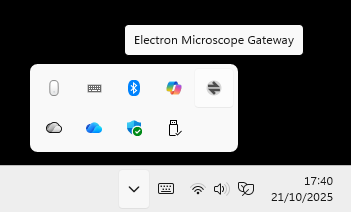
EMGateway is normally set up to run automatically at log in, and resides in the System Tray as a round icon containing two arrows pointing left and right, as shown in the screenshot below.
App notifications are displayed as standard windows notifications, depending on the local Windows notifications settings.
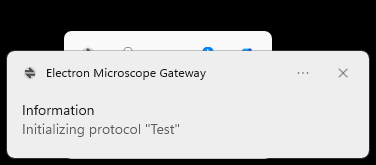
Windows notifications, or notifications for the EM Gateway app may be turned off or sent only to the notification centre, please check your Windows settings!
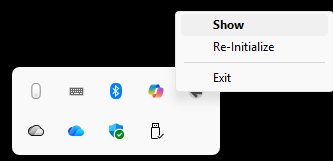
To see the UI, please click right the icon, and select 'Show' as shown in the screenshot below.
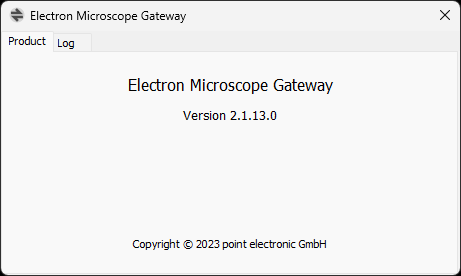
The user interface is structured in two tabs 'Product' and 'Log'.
Tab 'Product'
The tab 'Product' displays the product name, the release version number and a copyright notice.
Tab 'Log'
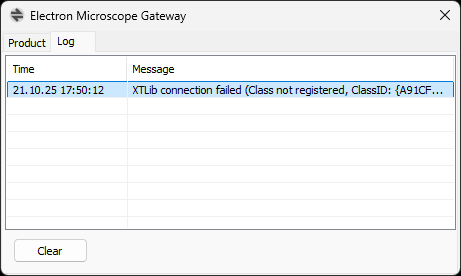
The tab 'Log' tab will normally displays a blank table with 'Time' and 'Message' information. The table will provide information about connection issues or communication only if an error is encountered. A 'Clear' button is provided for convenience, to remove error messages from this log table.
The user interface can be closed with the normal close button at title bar.
Closing the EMGateway window will not exit the server.
Common operations
Most of the server operation is automated - the only available operations are 'Start', 'Exist' and 'Re-Initialize'.
Start
The server is normally set up at installation to start at Windows login, therefore it should already be present in the System Tray. If the server must be started manually, then open the Start Menu and type 'EMGateway', then click on Open or press Enter on the keyboard. Only once instance of EMGateway is allowed.
If the end user license is not found, then EMGateway will display a missing license error and exit. In this situation, please contact service@pointelectronic.de.
Exit
To exit the app, locate app in the System Tray, click right on its icon to show the context menu, then press 'Exit' to close the server.
EMGateway is normally set to start at Windows log-in, so it could automatically restart at the next PC reboot or log-in.
Re-Initialize
If connection to the microscope is lost, the server may be reinitialised without restarting. Locate app in the System Tray, click right on its icon to show the context menu, then press 'Re-initialize' to re-establish the connection to the microscope. Check if any connection messages appear in the Log table.