
tmp
Camera Control software is designed for acquisition of camera data synchronised with beam scanning. Currently only one-dimensional data is supported for spectrum acquisition. Spectral data may be saved directly to disk using a plain text file format, or may be reduced to a number of spectrum windows that are integrated and sent to the scan control software to compose maps.
App Layout
App is using a top pane for a ribbon toolbar, a right pane for live spectrum view, a left pane for data and bottom panel for a status bar. An app splash screen is displayed at the app start. Dark and light colours are used depending on the system settings.
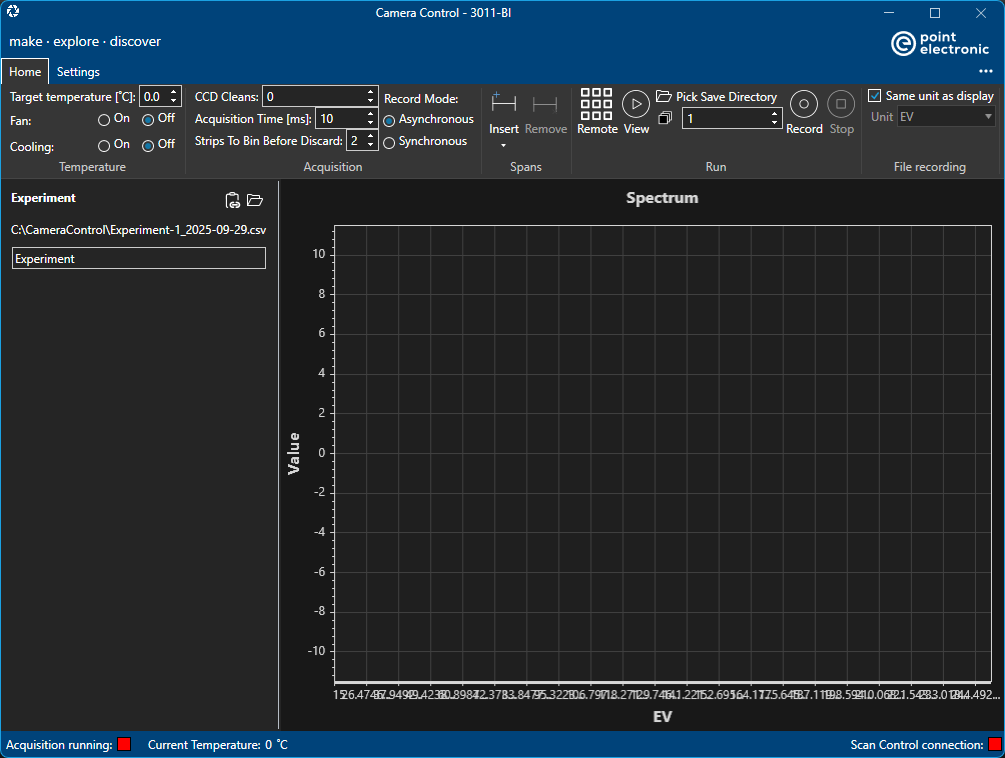
Note that app title includes the name of the connected camera, '2011-BI' in the screenshot above.
Ribbon Toolbar
There are two vertical sections in the ribbon toolbar, top section displays the selected and available toolbar titles on the left, and the '...' menu on the right. Screenshot below shows the 'Home' toolbar, which is selected, and an available 'Settings' toolbar - further conditional toolbars may be shown depending on the context. The '...' menu gives access to About and Help.
Camera parameters displayed at start up may be incorrect!!!
Camera control gets camera parameters from the camera itself, it does not store parameters into a settings file. However the camera driver has been found to report incorrect parameters, for example it may report the fan is on when it fact it's off. This is a known issue, and has been reported to the camera manufacturer. Please make sure to toggle camera parameters to make sure they are applied,
If no camera is found, then the app displays a 'No real camera found' message, and it defaults to an internal 'dummy camera' for demonstration purposes.
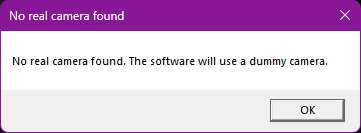
Not all camera functions are supported in the 'dummy camera'!