App Description
Camera Control software is designed for acquisition of camera data synchronised with beam scanning. Currently only one-dimensional data is supported for spectrum acquisition. Spectral data may be saved directly to disk using a plain text file format, or may be reduced to a number of spectrum windows that are integrated and sent to the scan control software to compose maps.
App Layout
App is using a top pane for a ribbon toolbar, a right pane for live spectrum view, a left pane for data and bottom panel for a status bar. An app splash screen is displayed at the app start. Dark and light colours are used depending on the system settings.
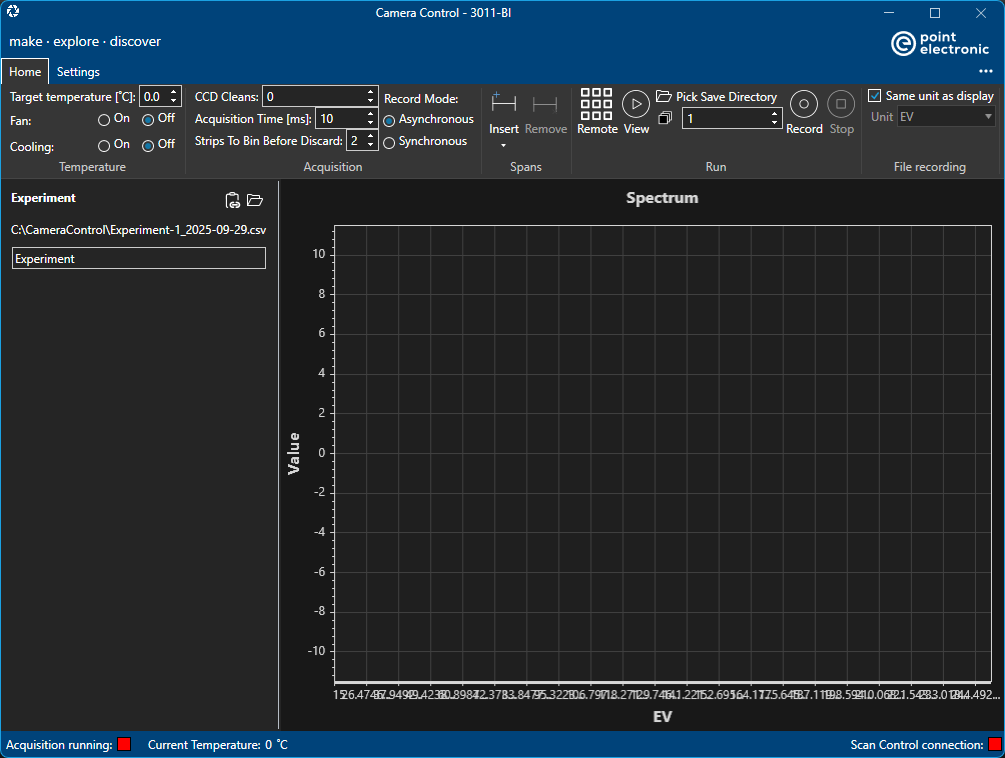
Note that app title includes the name of the connected camera, '2011-BI' in the screenshot above.
Ribbon Toolbar
There are two vertical sections in the ribbon toolbar, top section displays the selected and available toolbar titles on the left, and the '...' menu on the right. Screenshot below shows the 'Home' toolbar, which is selected, and an available 'Settings' toolbar - further conditional toolbars may be shown depending on the context. The '...' menu gives access to About and Help.

Home toolbar is intended for frequent and critical camera control functions, including temperature, acquisition parameters, spectrum spans, and run parameters.
Camera parameters displayed at start up may be incorrect!!!
Camera control gets camera parameters from the camera itself, it does not store parameters into a settings file. However the camera driver has been found to report incorrect parameters, for example it may report the fan is on when it fact it's off. This is a known issue, and has been reported to the camera manufacturer. Please make sure to toggle camera parameters to make sure they are applied,
Acquisition parameters
These parameters reflect the available hardware settings
- 'CCD Cleans' describes removing charge from the CCD pixels before acquisition. It's sometimes also referred as 'resetting'.
- 'Acquisition Time (ms)' is the time used for each frame in the CCD acquisition.
- 'Strips to Bin Before Discard' is a parameter used for data transfer, default value is 2.
- 'Record Mode' is a parameters used by the camera driver for data transfer, default is 'Asynchronous'
Span parameters
Spans define windows into the spectrum plot, which will be processed live into single values and sent remotely to the scan control app to produce simultaneous maps for each window. The app must be set into the 'Remove' mode.
- 'Insert' adds a new span into the spectrum. A popup menu will be shown to manually input name, start, length, binning and colour of the span - see screenshot below.
- 'Remove' deletes the currently selected span from the spectrum
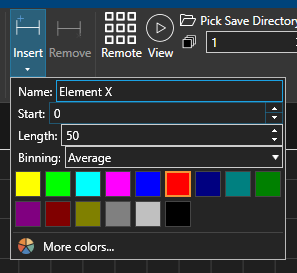
A unique span name must be given before a span can be added!
Run parameters
These define the mode in which the camera will be run and how data will be saved. Camera may be run in local or remote modes, where local mode is completely independent and not synchronised with beam scanning. When 'Remote' mode is enabled, the acquisition will be initiated by the scan control app.
If 'Remote' is enabled, as shown in the screenshot below, then spectrum windows data will be sent to the scan control app, and two further run parameters are available
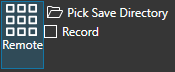
- 'Pick Save Directory' to specify location of saved data
- 'Record' to enable local save of raw data
If 'Remote' is not enabled, as shown in the screenshot below, then spectrum window data will not be sent to the scan control app, andddddddddddddddd

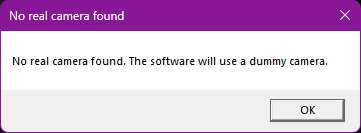
If no camera is found, then the app displays a 'No real camera found' message, and it defaults to an internal 'dummy camera' for demonstration purposes.
Not all camera functions are supported in the 'dummy camera'!