
Description
This app is provided to set TCP/IP settings for REVOLON and DISS6 scan controllers. It is needed for the initial hardware installation on the microscope or lab network, and for subsequent changes to the network.
Please make sure any TCP/IP change is compatible with the existing microscope or lab network!
For connection to the scan controller, client apps will also require these TCP/IP settings. If a client app fails to connect to the device, please double check app setting with the TCP/IP settings on the display panel on the front of the hardware scan controller.
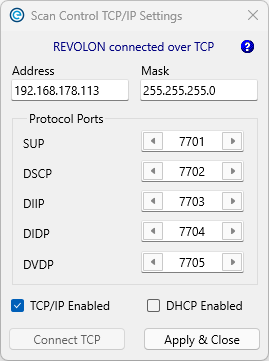
Start
At start, the app will attempt to connect to the hardware scan controller using a USB connection.
Status
Connection possiblestatus towill connectbe to the hardware scan controller using a TCP/IP address, as explainedgiven in the text line under the window title bar. This may be
For further information see the Connection page,page howeverin this requires an existing working network configuration.manual.
Help
Please click the question mark '?' in the top right of the app to open a local help file or navigate to the online address of this user manual.
Connect TCP
If a USB connection is made at app start, then the 'Connect TCP' button is disabled. If a USB connection is not made at app start, then the 'Connect TCP' button is available to connect to the hardware scan controller using a TCP/IP address. For further information, see the Connections page in this manual.
Apply & Close
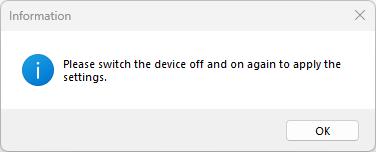
To apply settings, please click on 'Apply & Close', which will prompt to switch the device off and on again, to apply the settings.
Exit
Use the app windows close button of the app main window to exit the app without applying new settings - this will keep existing existing device settings.